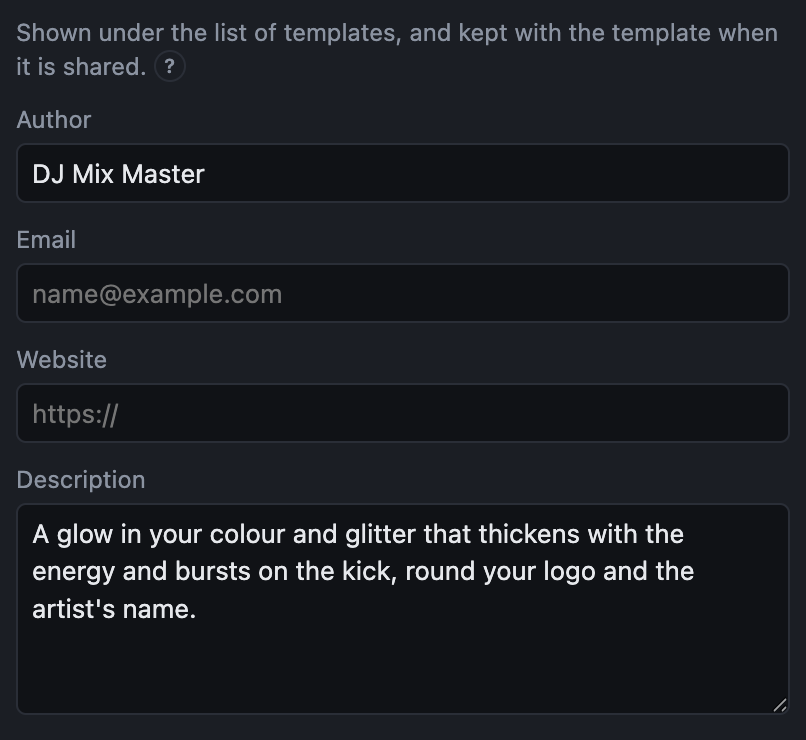
Fields and the About page
Fields
Fields are what someone using a template fills in, without editing it: a colour, a logo, the venue. They are made in the editor's Fields tab and filled in under the template in the Video view.
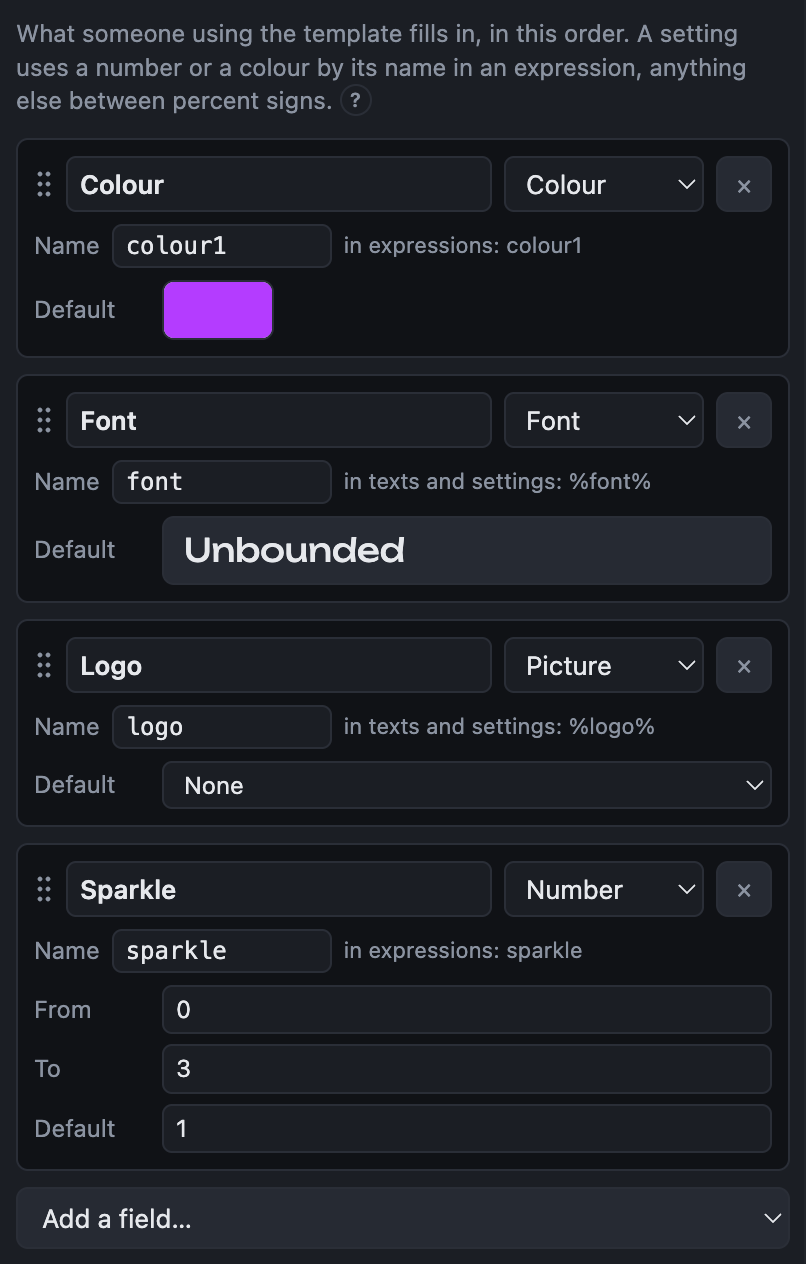
Each field has a label, shown where it is filled in; a kind; a name, by which the template's settings use it; and a default.
| Kind | Used for | Used in settings as |
|---|---|---|
| Colour | A colour, chosen with a picker | its name in a formula: colour1, lighten(colour1, 0.2) |
| Number | A slider between two values | its name in a formula: 1 + amount * bass |
| Text | A line of text | %name% in a text layer |
| Picture | A logo or a photo | %name% as an image layer's picture |
| Video | A clip, or the recording's own picture | %name% as a video layer's video |
| LUT | A look, from those that come with the app, the LUT folder or a .cube file | %name% as a LUT layer's LUT |
| Font | A font of the computer's, or one of the app's | %name% as a text layer's font |
| List | One of a few words you list | %name% in any setting that is a choice, such as a blend |
- Add a field with the list at the foot of the tab.
- Reorder by dragging a field's card, or click it and press ⌥↑ ↓ (Alt+↑ ↓). Fields are filled in in this order.
- Remove with the × button, or click the card and press Backspace. Settings that used it say so.
- Renaming a field renames it everywhere the template uses it.
Shortcuts
| Mac | Windows, Linux | Does |
|---|---|---|
| Shift+⌘N | Shift+Ctrl+N | Add a layer: type to find its kind, Return to add it |
| Drag a layer up or down | Put it in front of or behind others | |
| Option+↑ ↓ | Alt+↑ ↓ | Move the selected layer forward or back |
| Double-click a layer | Rename it | |
| Drag a number box sideways | Change it; with Shift, finer | |
| Click the picture | Select the layer there | |
| Drag a layer's outline, or a corner | Move it, or resize it; with Shift, keeping its proportions | |
| Backspace | Delete the selected layer | |
| ⌘J | Ctrl+J | Duplicate the selected layer |
| ⌘G, Shift+⌘G | Ctrl+G, Shift+Ctrl+G | Group the selected layer, ungroup a group |
| Drag a layer onto a group | Put it in the group | |
| ⌘-click, Shift-click a layer | Ctrl-click, Shift-click a layer | Select several, or a run of them, to group, delete, duplicate or drag together |
| Drag a field up or down | Change the order fields are filled in; or click it and press Option+↑ ↓ | |
| Click a field, Backspace | Remove it | |
| ⌘Z, Shift+⌘Z | Ctrl+Z, Shift+Ctrl+Z | Undo, redo changes to the template |
Text variables
Text layers fill in variables written between percent signs, such as %artist%, %mixName% or %currentTrack%. The full list is in the formula reference.
The About page
The About tab says who made the template and what it is: an author, an email, a website and a description. It is shown under the list of templates, and kept with the template when it is shared.