
The manual
DJ Mix Master masters recorded DJ mixes. Open a recording of a set or a whole night, mark the mixes inside it, and it evens out the loudness from track to track: louder tracks come down, quieter ones come up, and the breakdowns keep their dip. It can also make a video of each mix for YouTube or social media, moving to the music.
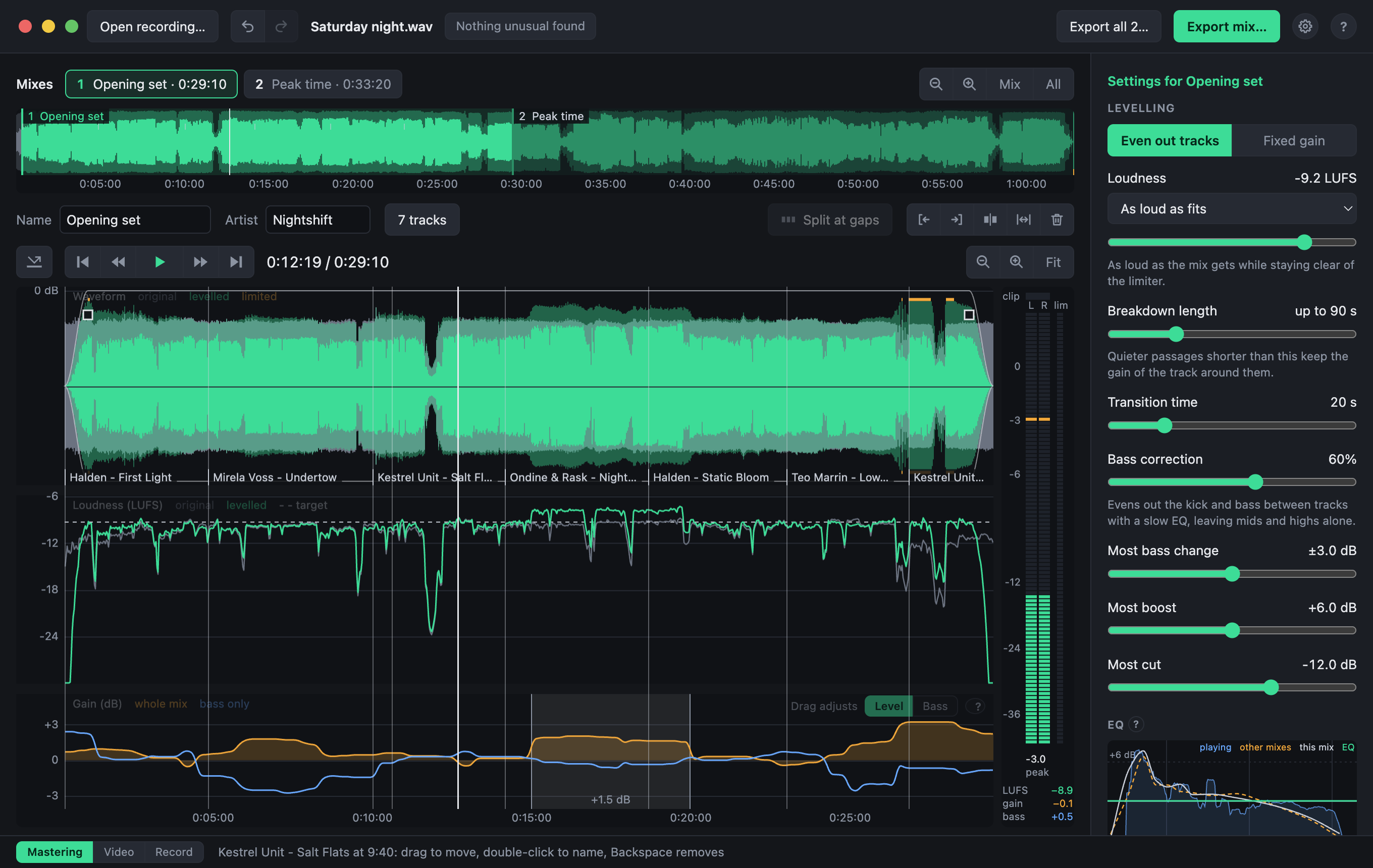
In five steps
- Open a recording. Drop it on the window, or use Open recording…. See Opening a recording.
- Mark the mixes. The whole recording starts as one mix; drag its edges, or split it at the silences.
- Listen. Press Space to play, and A to hear the recording as it was. See Listening and levelling.
- Adjust if needed. The defaults suit most mixes.
- Export the sound, or a video. See Exporting audio and Exporting video.
Your recording is never changed, and it never leaves your computer.
Where to find what
- New to the app: Installing, then Opening a recording.
- Making a video: The Video view, then Exporting video.
- Making templates of your own: Editing templates, with the layer types and the formula reference.
- Every key and gesture on one page: Shortcuts.
- Something wrong, or missing: Reporting issues.
In the app
Help → User Manual opens this manual in a window of its own, for the version you have, without a network. Its toolbar goes back, forward and home. Its search looks through every page: pick a result to go to that part of its page, where the words are marked. Links to the website open in your browser. Esc puts the window away, once any search is closed and cleared; it comes back where you left it.
The ? button at the top right of the app, or F1, opens the page about what is on screen: the dialog that is open, the view, or in the template editor the kind of layer selected. A small ? beside some panels, such as the EQ, the masks and the formulas, opens the part of a page about that panel.
Shortcuts
| Mac | Windows, Linux | Does |
|---|---|---|
| ⌘F | Ctrl+F | Search every page; the words are marked on the page shown |
| ↑ ↓, Return | Choose a result and go to it | |
| Esc | Close the results, then clear the search, then put the manual away; it comes back as it was | |
| ⌘[ or Option+← | Ctrl+[ or Alt+← | The page before |
| ⌘] or Option+→ | Ctrl+] or Alt+→ | The page after |