Opening a recording
Drop a recording on the window, or use Open recording… (⌘O on a Mac, Ctrl+O elsewhere). It is analysed once, which takes about a minute for an eight-hour file; after that it opens at once. Recent recordings are listed on the start screen and under File → Open Recent.
The app opens almost anything: MP3, WAV, FLAC, AAC and M4A, AIFF, Ogg and Opus, and videos (MP4, MOV, MKV, WebM). Your file is never changed.
A recording in several files
Recorders often split a long recording into parts of 2 or 4 GB. Select all the parts together, or drop them together, and they open as one recording, in the order of their numbers or else in the order they were written.
A video of the set
A video opens like any recording: its sound is what is mastered. Its picture can go with the export, as it was filmed or inside a template. See Exporting video.
Mixes
The whole recording starts out as one mix. A recording of a night usually holds several sets, so the timeline at the top shows the whole recording, and each mix as a green stretch on it.
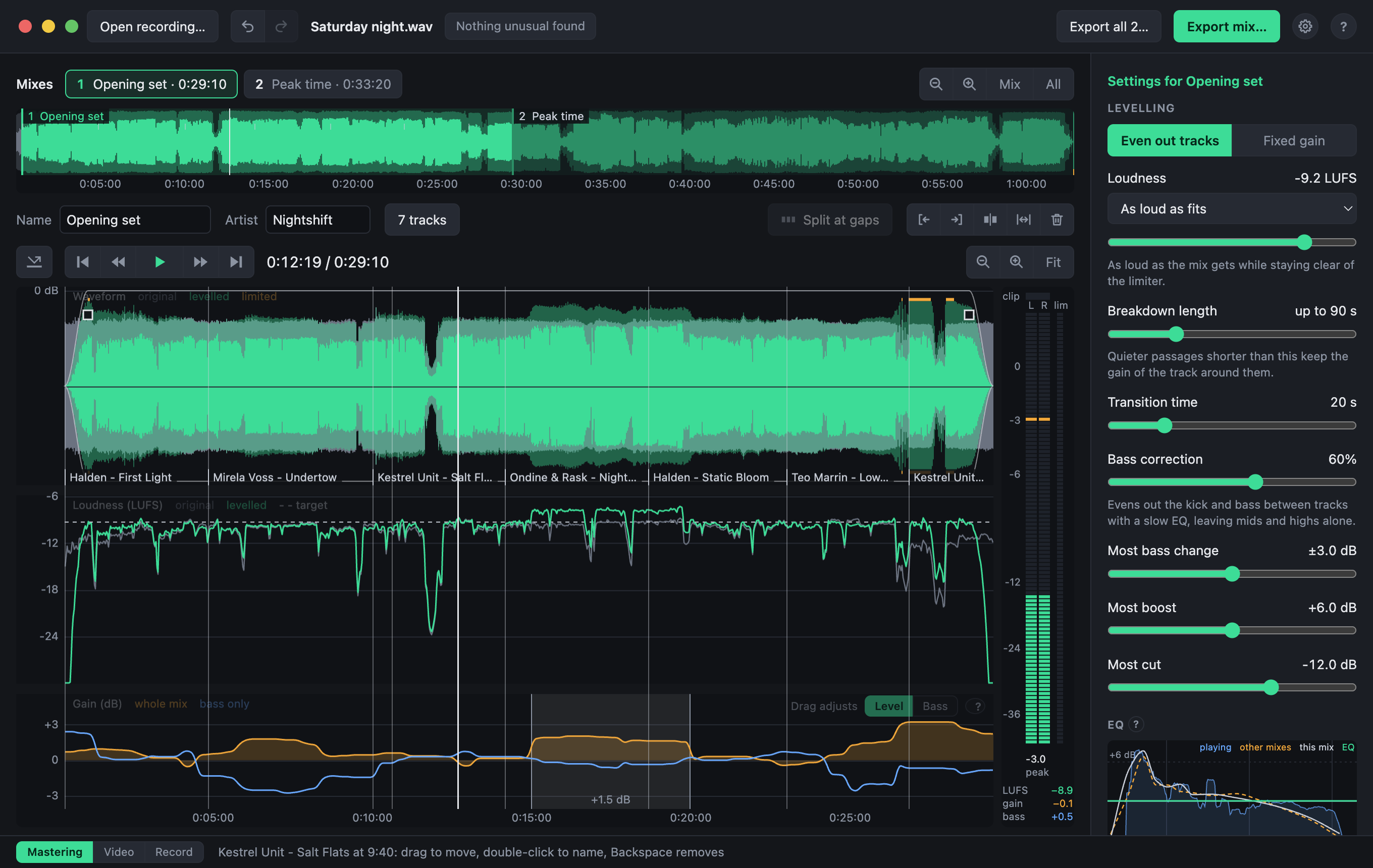
- Mark a mix: drag across a free part of the recording, or double-click one to fill it.
- Trim a mix: drag its edges. Press I or O to put its start or end at the playhead, to the millisecond.
- Split at gaps: cuts the mix apart at the silences, marked in orange, for a night of several DJs.
- Split at the playhead (⌘E, Ctrl+E): for a handover mixed without a gap.
- Name a mix: type in the Name and Artist boxes, or double-click its tab. Named mixes are exported under their names.
Each mix has its own settings, adjustments and tracks. Apply to all mixes, at the foot of the settings, copies the selected mix's settings to the others.
Everything you do is saved as you go, and undone with ⌘Z (Ctrl+Z). Opened again, a recording comes back as you left it, even after it has been moved or renamed. The app starts with the recording you had open last, in the view you left it in.
Shortcuts
| Mac | Windows, Linux | Does |
|---|---|---|
| Drag across a free part | Mark a new mix | |
| Double-click a free part | Fill it with a new mix | |
| Drag a mix's edge | Move where it starts or ends | |
| Drag the middle of a mix | Move it | |
| Click inside a mix | Select it and put the playhead there | |
| Click a mix's edge | Jump to its start, or just before its end | |
| Scroll, or pinch | Zoom in and out | |
| Swipe sideways, or drag with the right button | Move along the recording | |
| Orange, red and white marks | Silences, clipping and possible dropouts | |