Installing
Download the installer for your system from the website. Nothing else needs to be installed: the app carries everything it uses, ffmpeg included.
| System | Needs |
|---|---|
| Mac | Apple Silicon (M1 or later), macOS 13 or later |
| Windows | 64-bit Windows 10 or later |
| Linux | 64-bit, Intel or AMD processor |
The installers are not signed, so each system warns about them the first time. On Windows, the Microsoft Store has a copy that needs no such steps and updates itself.
Mac
- Open the downloaded disk image and drag DJ Mix Master to Applications.
- Open it. macOS blocks it the first time.
- Open System Settings → Privacy & Security, scroll down and click Open Anyway. From then on it opens normally.
If macOS says the app is damaged, open Terminal and run:
xattr -dr com.apple.quarantine "/Applications/DJ Mix Master.app"There is no version for Intel Macs yet.
Windows
Run the setup file. When Windows protected your PC appears, click More info, then Run anyway.
Linux
The app is an AppImage: one file that runs as it is.
- Make it executable: in a terminal,
chmod +x DJ*.AppImage, or tick "Allow executing" under Properties → Permissions in a file manager. - Run it.
If nothing happens, your system lacks FUSE 2, which AppImages need. On Ubuntu 24.04 install it with sudo apt install libfuse2t64; on older Ubuntu, libfuse2.
Settings
A few choices belong to the app rather than to a recording. Open them with the gear at the top right, or ⌘, on a Mac (Ctrl+, elsewhere).
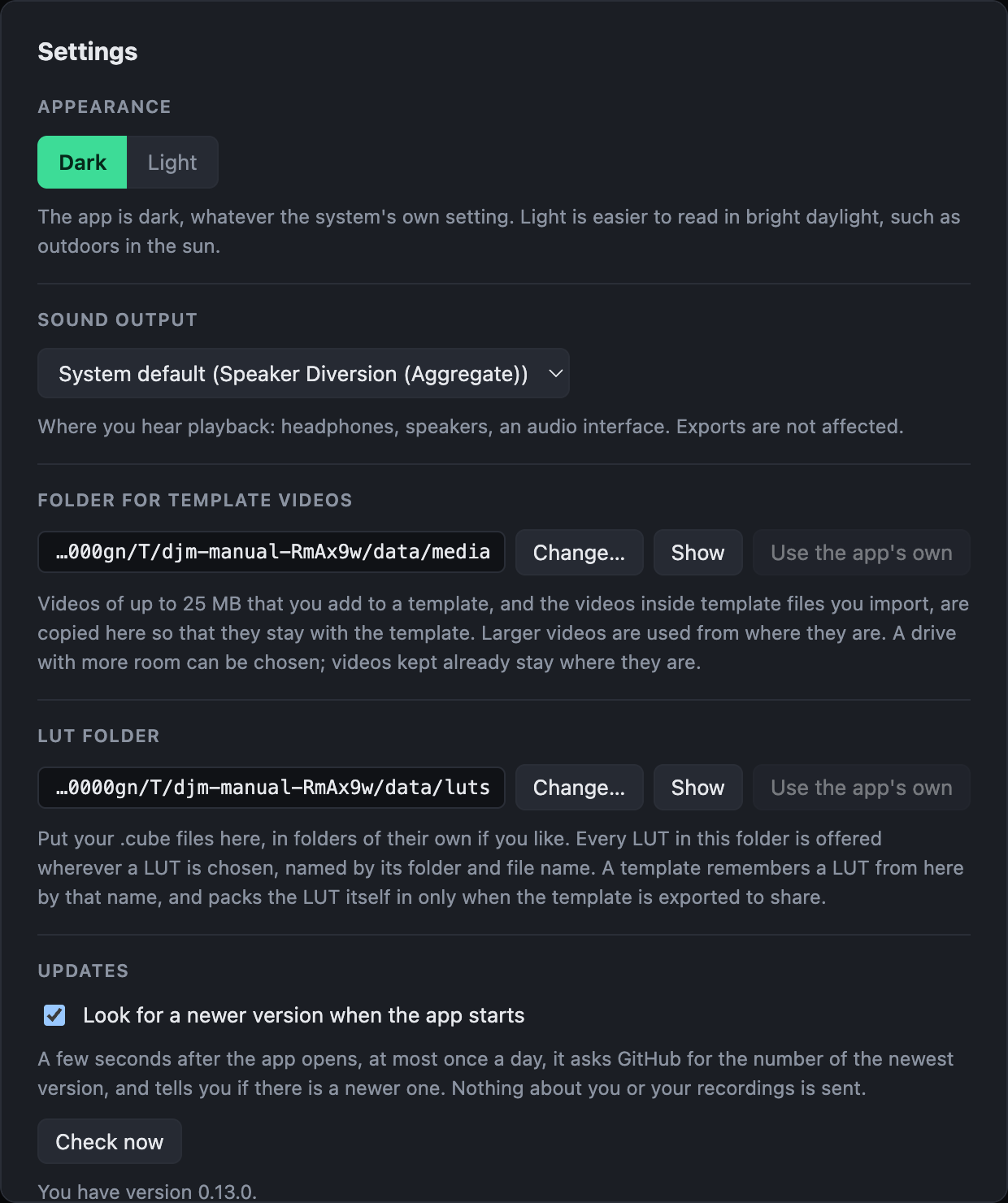
- Appearance: Dark or Light. The app is dark unless you choose Light, whatever your system's own setting is; Light is easier to read in bright daylight. The choice is kept for next time.
- Sound output: where you hear playback, such as headphones, speakers or an audio interface, or the system's default. If the output you chose is not plugged in, you hear the default meanwhile, and the app switches back once it is there again. Exports are not affected.
- Folder for template videos: where videos added to templates are copied. Choose a drive with more room if you use many.
- LUT folder: put your .cube files here, and they are offered wherever a LUT is chosen.
- Updates: whether the app looks for a newer version when it starts. This is the only time it contacts anything: it asks GitHub for the newest version's number, at most once a day, and sends nothing about you or your recordings. If there is a newer version, a line at the top of the window says so; nothing is installed for you.