
Layer types
Every kind of layer, with a picture of it and its own settings. Every layer also has the settings every layer has; layers that draw, and groups, have the layer styles too.
Effects change what is beneath them, inside their group if they are in one. They draw nothing of their own.
| Layer | What it does |
|---|---|
| Solid colour | Fills the whole picture with one colour: a plain background, or with a blend, a tint over what is beneath. |
| Gradient | Up to five colours blending into each other, in a line, in circles or round a point. It can turn slowly and shift its colours over time. |
| Glitter | Points of light that drift, twinkle and fade, in up to three colours. They can burst out on the beat. |
| Image | A picture, such as a logo or a photo, placed and sized on the picture. A field can let whoever uses the template choose their own. |
| Video | A video clip: looped, played once or back and forth, at any speed, and started again on the beat, the bar or each track. A clip made on green or black can have that keyed out. It can also show the recording's own picture. |
| Text | Words on the picture, such as the artist, the mix's name or the track playing, written with %variables% that fill themselves in. A change of text can cut, fade, slide or type itself in. |
| Spectrum | Bars that rise and fall with the music, from the bass on one side to the highs on the other, in a row or round a circle. |
| Waveform | The shape of the sound as it goes by, as a line or as filled bars, straight or round a circle. |
| Shape | A rectangle, an ellipse, a polygon, a star or another shape, filled with a colour or a gradient and outlined. Only part of it can be drawn, across or round, which with progress makes a progress bar or a ring that fills. |
| Noise | Patterns that evolve and drift: clouds, smoke, ridges, cells, cracks, marble and plasma, coloured by a gradient from their low to their high parts. A see-through stop lets what is beneath show, so white clouds can float over it. |
| Grid | A pattern over the whole picture: lines, a checkerboard, a honeycomb, dots or stripes, or a floor of lines running to the horizon, as in a retro synthwave video. It can scroll. |
| Glow | Makes the bright parts of the picture beneath shine, spreading their light around them. |
| Group | Holds layers together, to show, fade, blend, move, turn and size them as one. An effect inside a group changes only the group's own layers. |
| Colour split | Pushes the red and the blue of the picture beneath apart, as a cheap lens does, in one direction or out from the middle. |
| Glitch | Tears the picture beneath into slices thrown sideways, with the colours split, as a damaged video does. |
| Brightness and contrast | Makes the picture beneath brighter or darker, and its contrast stronger or weaker. |
| Hue and saturation | Turns the colours of the picture beneath round the colour wheel, and makes them richer, greyer, lighter or darker. |
| Displace | Moves the picture beneath about: wobbling with noise, waving like a flag, rippling out from a point, swirled round it, or bulged and pinched as through a lens. Inside a group, only the group's layers. |
| Mosaic | Breaks the picture beneath into cells, each of the colour under it: squares (pixels), hexagons, circles, halftone dots that grow with the brightness, or triangles. With fewer colours, it looks like an old computer's. |
| Gradient map | Recolours the picture beneath by its brightness: dark parts take the gradient's first colours, bright parts its last. Two colours make a duotone; more, any palette. The colours can slide along it with the music. |
| White balance | Warms or cools the colours of the picture beneath, and moves them towards green or magenta: to correct a photo or video taken under the wrong light, or to give it a mood. In a group with a picture, it changes only that picture. |
| Kaleidoscope | Repeats a slice of the picture beneath all the way round a point, mirrored or not, as a kaleidoscope does. |
| Transform | Moves, turns, sizes and flips everything beneath it as one. Past the picture's edges it shows nothing, the picture repeated, mirrored, or its edges drawn out. |
| Trails | Leaves what moves beneath it behind as it goes, fading: as an echo, or only its bright or dark parts. The trail can zoom and turn as it fades. |
| Vignette | Darkens the edges of the picture towards a colour, leaving the middle clear, round a point you choose. |
| Blur | Softens the picture beneath, evenly out to its edges. |
| LUT | Gives the picture beneath a look from a colour lookup table: one of the film and other looks that come with the app, or a .cube file as made in Resolve, Premiere and the like. |
Layers that draw
Solid colour
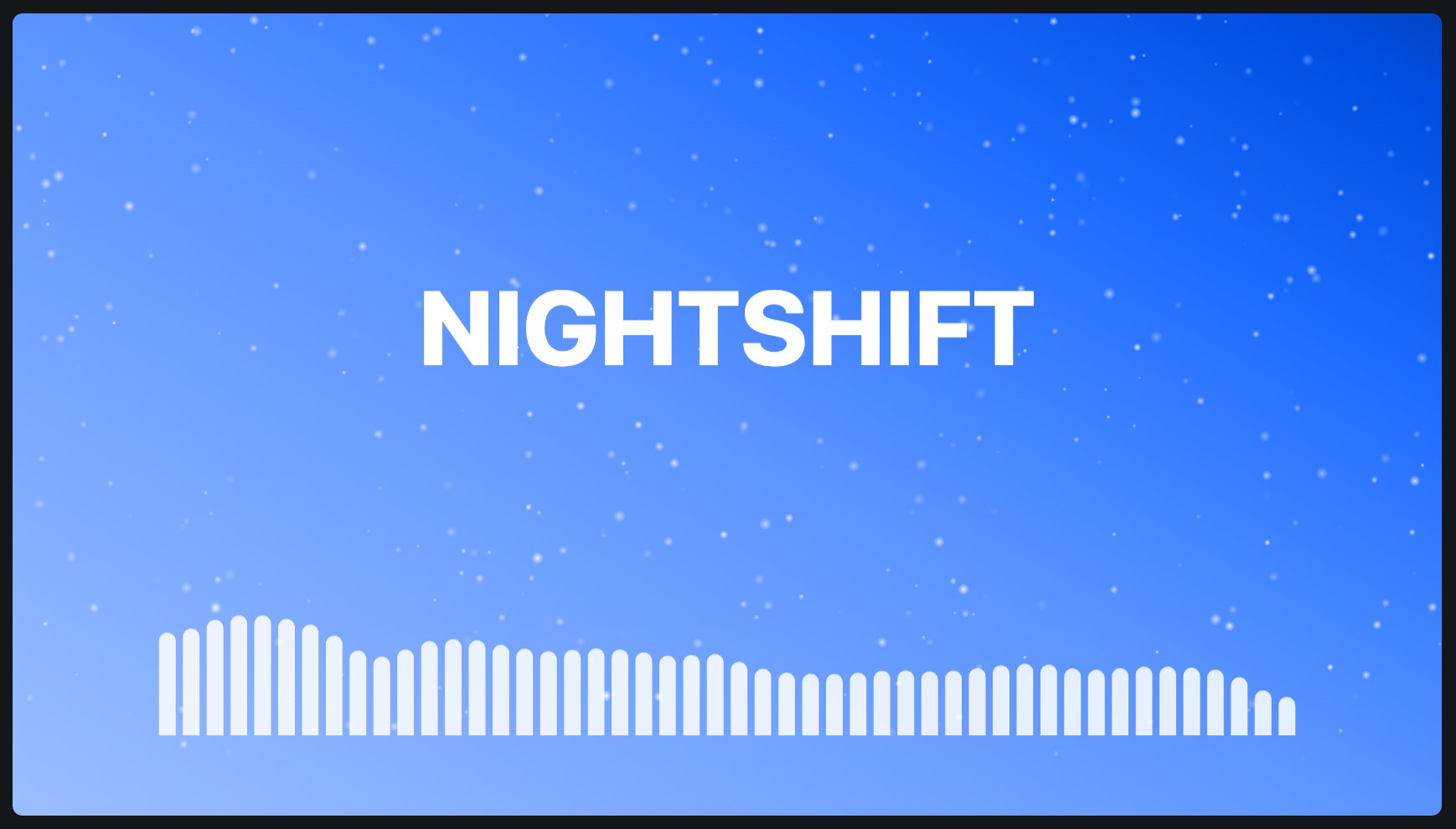
Fills the whole picture with one colour: a plain background, or with a blend, a tint over what is beneath.
| Setting | Takes | Starts at |
|---|---|---|
| Colour | a colour | #101830 |
Also: visible, opacity, blend, shown from, shown until, before the end, fade in, fade out, and the layer styles. See settings every layer has.
Gradient
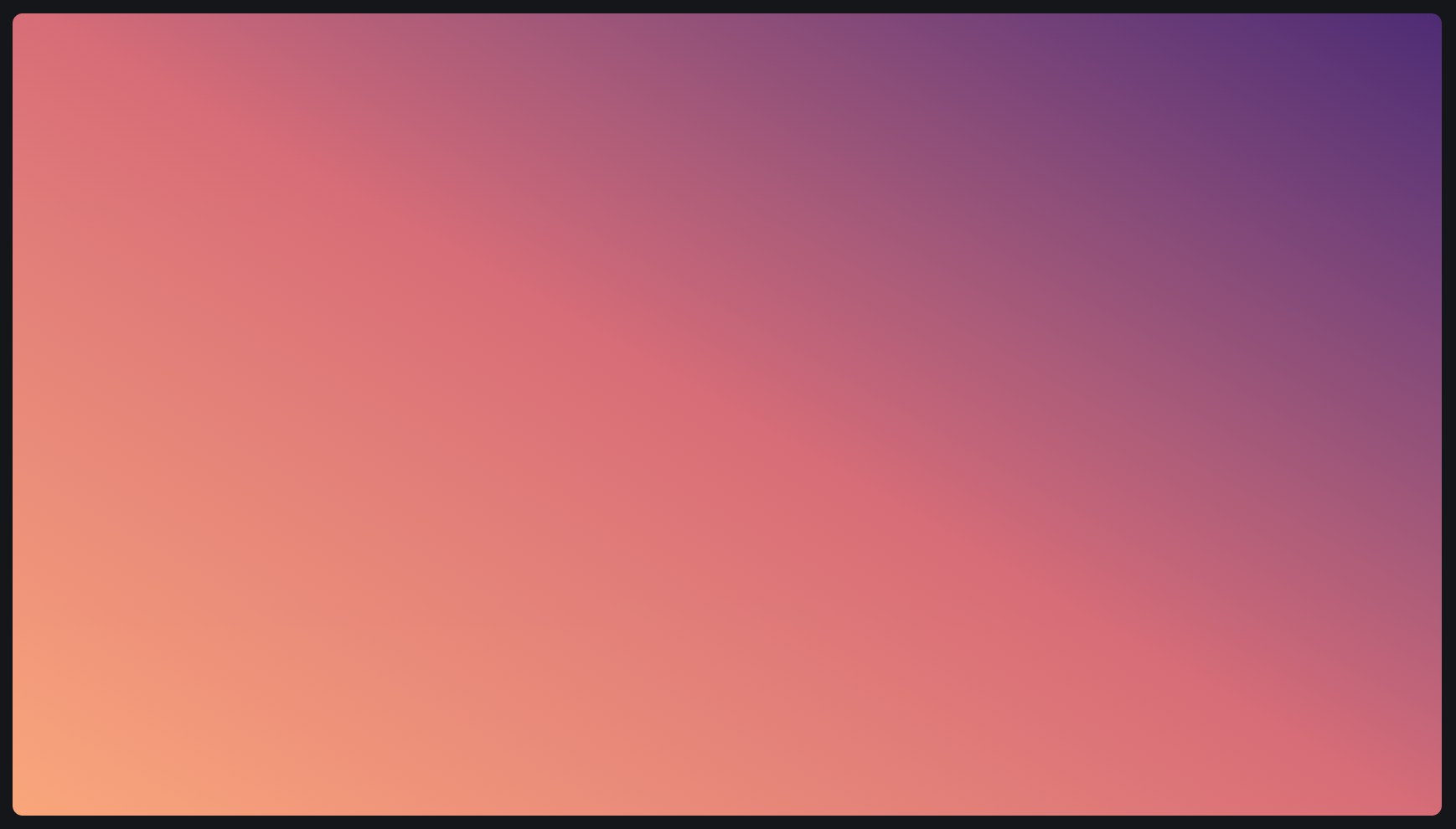
Up to five colours blending into each other, in a line, in circles or round a point. It can turn slowly and shift its colours over time.
| Setting | Takes | Starts at |
|---|---|---|
| Kind | linear, radial, conic | linear |
| Stop 1 | a colour | #101830 |
| Stop 1 at | 0 to 1 | 0 |
| Stop 2 | a colour | none |
| Stop 2 at | 0 to 1 | 0.25 |
| Stop 3 | a colour | none |
| Stop 3 at | 0 to 1 | 0.5 |
| Stop 4 | a colour | none |
| Stop 4 at | 0 to 1 | 0.75 |
| Stop 5 | a colour | #2a0f3c |
| Stop 5 at | 0 to 1 | 1 |
| Colours blend | even, round the colour wheel | even |
| Angle | 0 to 360 ° | 90 ° |
| Drift | 0 to 90 °/s | 0 °/s |
| Hue shift | 0 to 60 °/s | 0 °/s |
Also: everything every layer has, and the layer styles. See settings every layer has.
Glitter
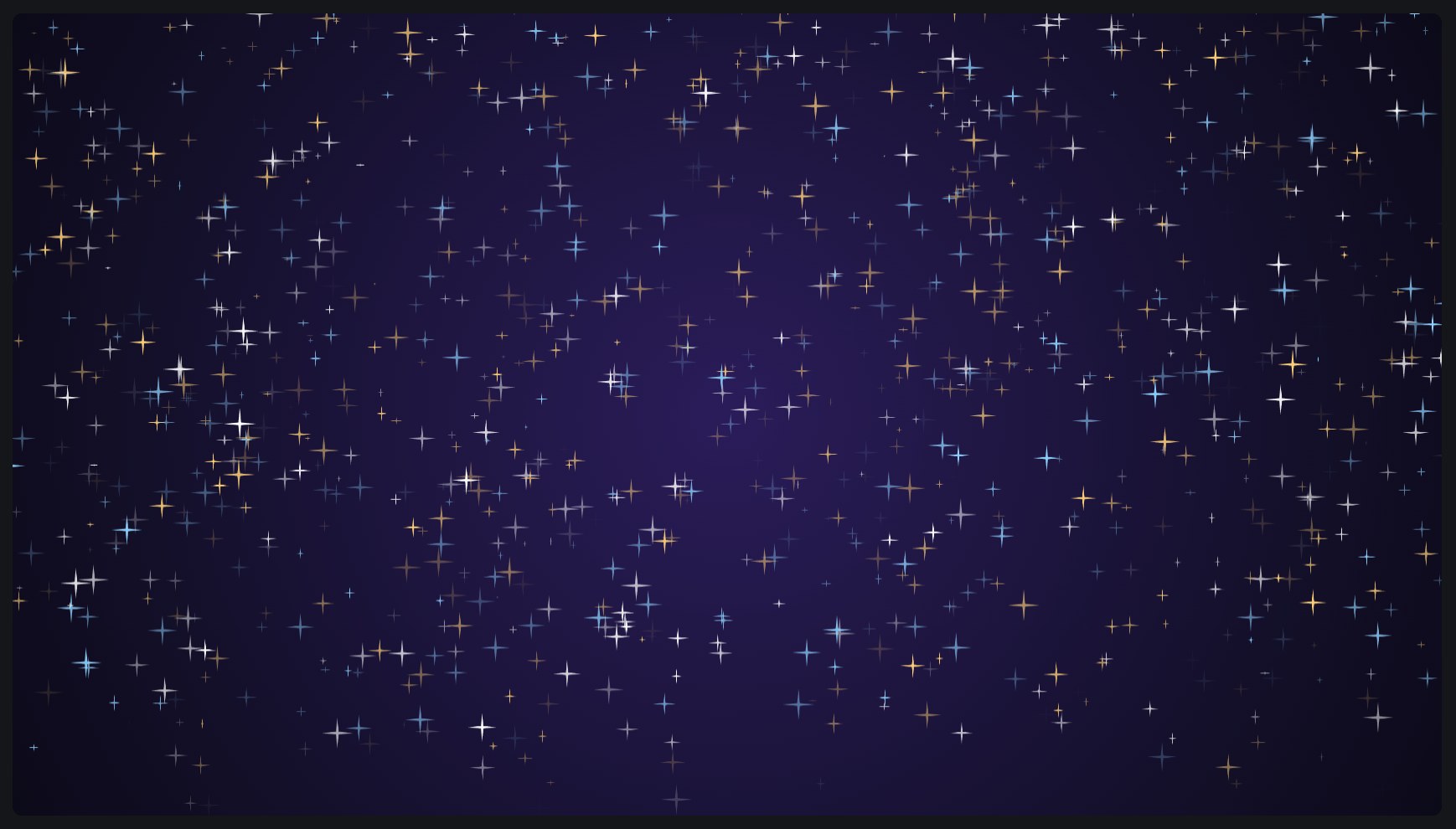
Points of light that drift, twinkle and fade, in up to three colours. They can burst out on the beat.
| Setting | Takes | Starts at |
|---|---|---|
| Count | 0 to 5000 | 300 |
| Smallest | 0 to 5 % | 0.2 % |
| Largest | 0 to 5 % | 0.8 % |
| Colour 1 | a colour | #ffffff |
| Colour 2 | a colour | none |
| Colour 3 | a colour | none |
| Shape | dot, soft dot, star, sparkle | soft dot |
| Speed | 0 to 100 %/s | 5 %/s |
| Direction | 0 to 360 ° | 270 ° |
| Spread | 0 to 360 ° | 30 ° |
| Turbulence | 0 to 100 % | 10 % |
| Lifetime | 0.1 to 60 s | 6 s |
| Twinkle | 0 to 20 Hz | 2 Hz |
| Twinkle depth | 0 to 1 | 0.5 |
| Starts from | everywhere, bottom, top, left, right, centre | everywhere |
| Burst on beat | 0 to 500 | 0 |
Also: everything every layer has, and the layer styles. See settings every layer has.
Image
A picture, such as a logo or a photo, placed and sized on the picture. A field can let whoever uses the template choose their own.
| Setting | Takes | Starts at |
|---|---|---|
| Image | a picture | none |
| Fit | contain, cover, stretch, natural | contain |
| Width | 0 to 100 % | 30 % |
| Height | 0 to 100 % | 30 % |
| Corner rounding | 0 to 50 % | 0 % |
| Shadow colour | a colour | #000000aa |
| Shadow blur | 0 to 10 % | 0 % |
| Tint | a colour | #ffffff |
| Tint amount | 0 to 1 | 0 |
| Brightness | 0 to 2 × | 1 × |
| Saturation | 0 to 2 × | 1 × |
Also: everything every layer has, and the layer styles. See settings every layer has.
Video
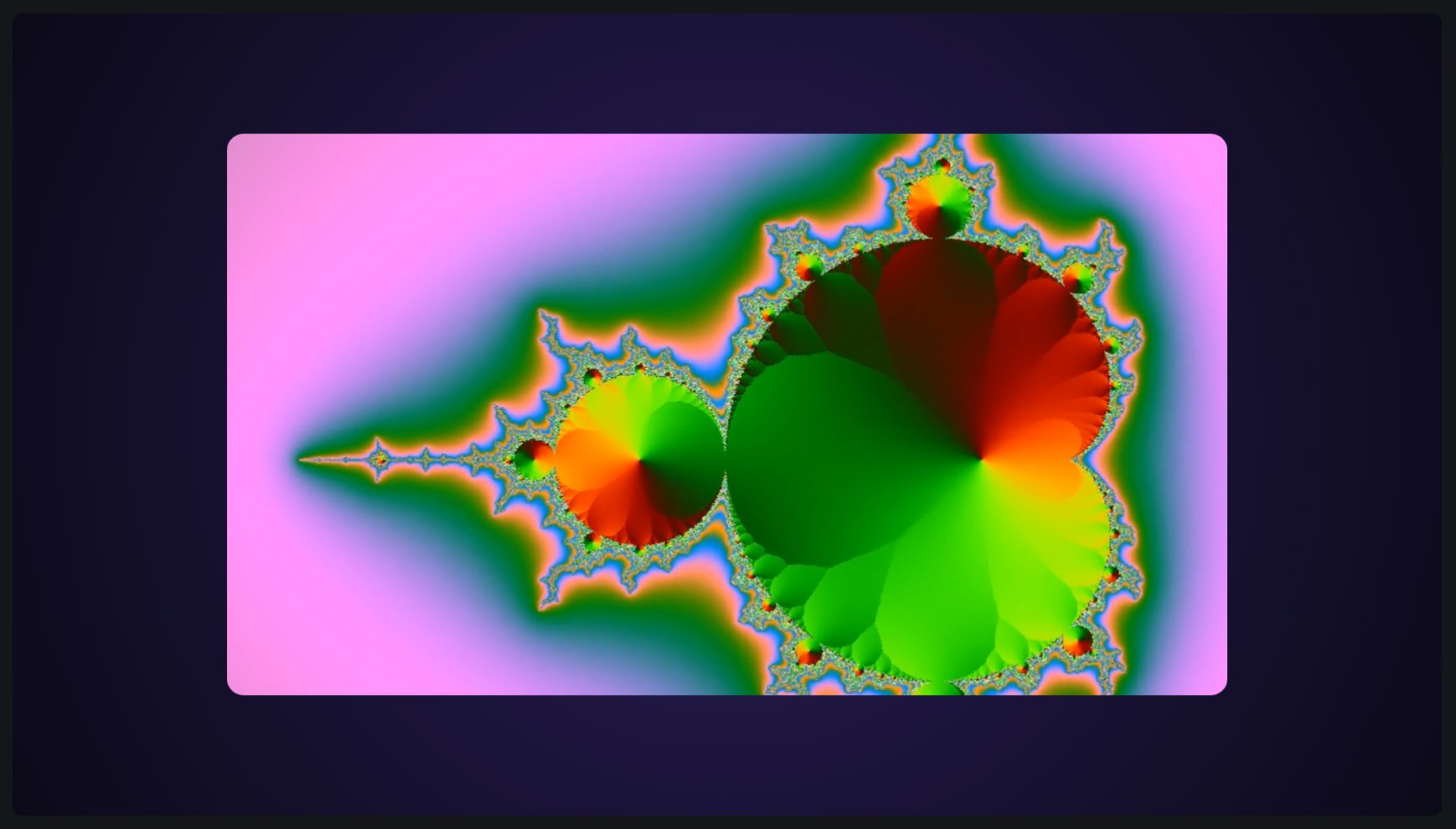
A video clip: looped, played once or back and forth, at any speed, and started again on the beat, the bar or each track. A clip made on green or black can have that keyed out. It can also show the recording's own picture.
| Setting | Takes | Starts at |
|---|---|---|
| Video | a video | none |
| Plays | loop, ping-pong, once, then hold, once, then hide | loop |
| Speed | 0.1 to 4 × | 1 × |
| Starts again | never, each track, each beat, every 2 beats, every 4 beats, every 8 beats, every 16 beats | never |
| Clip from | 0 to 600 s | 0 s |
| Clip until, 0 for its end | 0 to 600 s | 0 s |
| Starts this far in | 0 to 600 s | 0 s |
| Fit | contain, cover, stretch, natural | cover |
| Width | 0 to 100 % | 100 % |
| Height | 0 to 100 % | 100 % |
| Corner rounding | 0 to 50 % | 0 % |
| Shadow colour | a colour | #000000aa |
| Shadow blur | 0 to 10 % | 0 % |
| Tint | a colour | #ffffff |
| Tint amount | 0 to 1 | 0 |
| Brightness | 0 to 2 × | 1 × |
| Saturation | 0 to 2 × | 1 × |
| Key out | none, colour, dark | none |
| Key colour | a colour | #00ff00 |
| Key tolerance | 0 to 1 | 0.3 |
| Key softness | 0 to 1 | 0.1 |
Also: everything every layer has, and the layer styles. See settings every layer has.
Text
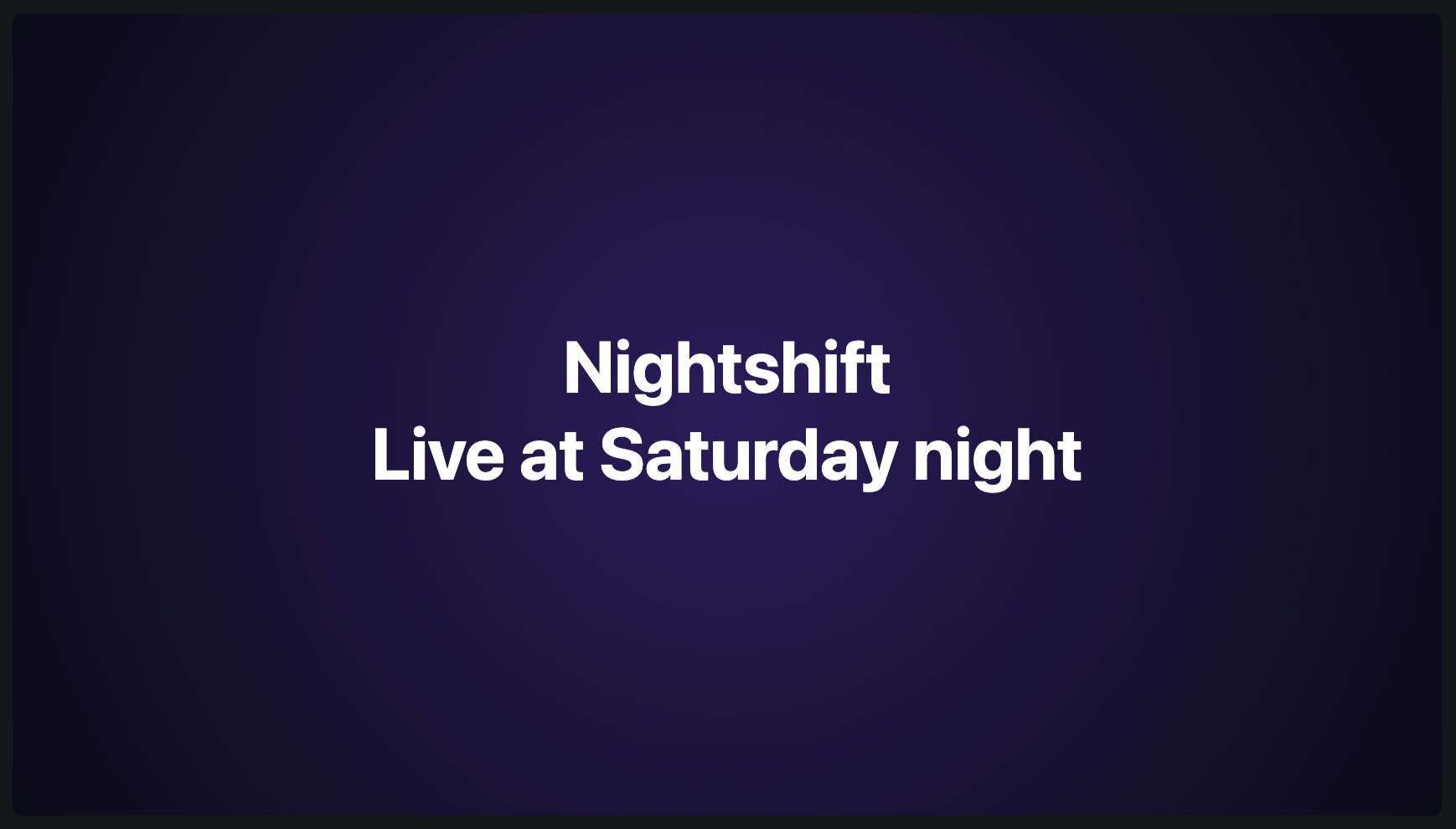
Words on the picture, such as the artist, the mix's name or the track playing, written with %variables% that fill themselves in. A change of text can cut, fade, slide or type itself in.
| Setting | Takes | Starts at |
|---|---|---|
| Text | text | %mixName% |
| Font | a font | Sans |
| Weight | 100 to 900 | 600 |
| Size | 0.5 to 40 % | 6 % |
| Colour | a colour | #ffffff |
| Alignment | left, centre, right | centre |
| Letter spacing | -10 to 50 % | 0 % |
| Line height | 50 to 300 % | 120 % |
| Wrap at | 5 to 100 % | 90 % |
| Case | as written, upper, lower | as written |
| Outline | 0 to 5 % | 0 % |
| Outline colour | a colour | #000000 |
| Shadow colour | a colour | #00000088 |
| Shadow blur | 0 to 10 % | 0 % |
| Box colour | a colour | none |
| Box padding | 0 to 10 % | 1 % |
| When the text changes | cut, fade, slide, typewriter | fade |
| Change takes | 0 to 5 s | 0.6 s |
| Hide when empty | on or off | on |
Also: everything every layer has, and the layer styles. See settings every layer has.
Spectrum
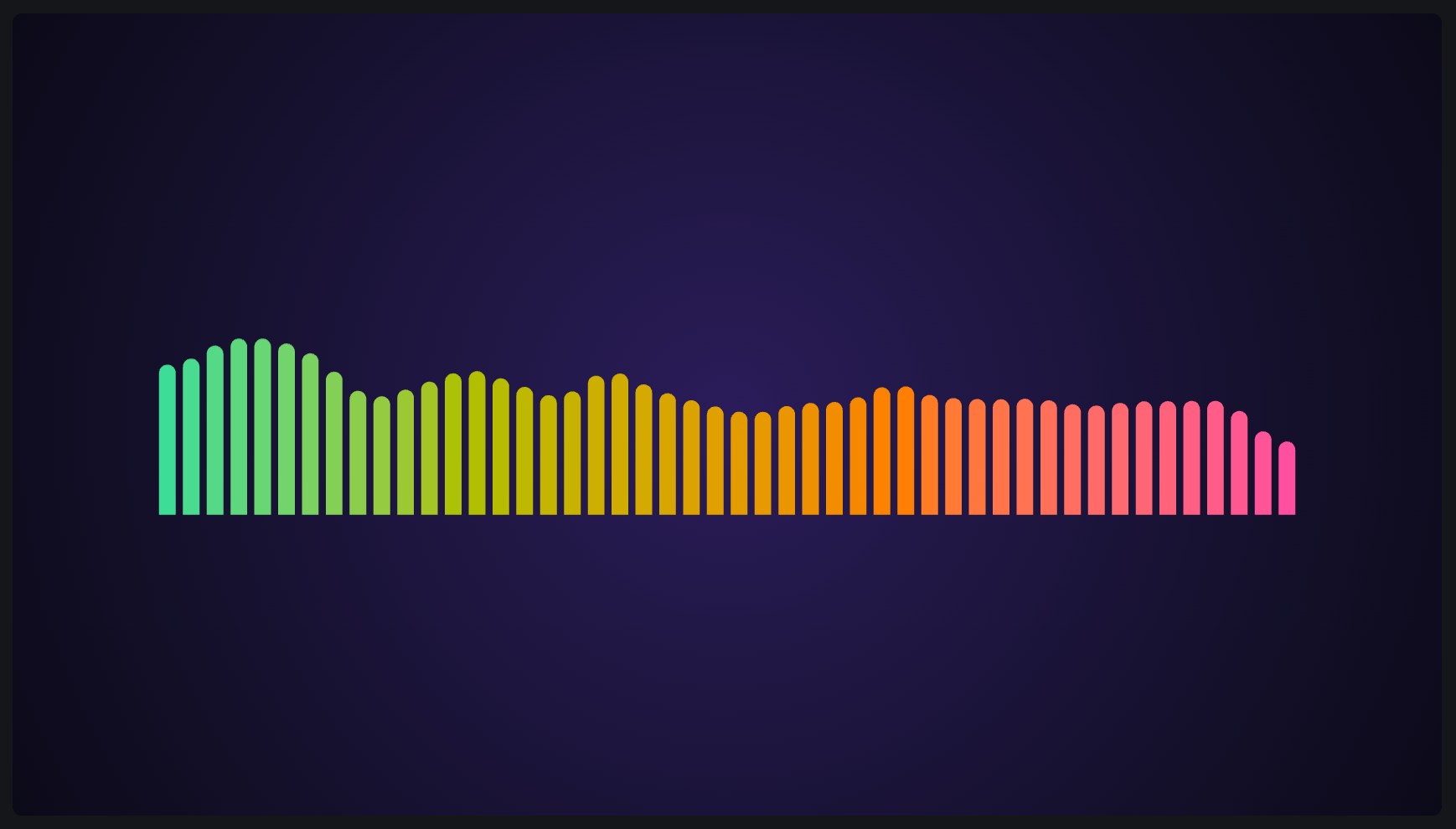
Bars that rise and fall with the music, from the bass on one side to the highs on the other, in a row or round a circle.
| Setting | Takes | Starts at |
|---|---|---|
| Bars | 4 to 256 | 48 |
| Lowest | 20 to 1000 Hz | 30 Hz |
| Highest | 1000 to 20000 Hz | 16000 Hz |
| Width | 0 to 100 % | 80 % |
| Height | 0 to 100 % | 25 % |
| Gap between bars | 0 to 90 % | 30 % |
| Rounded ends | on or off | on |
| Colouring | one colour, along, by height | along |
| Stop 1 | a colour | #3ddc97 |
| Stop 1 at | 0 to 1 | 0 |
| Stop 2 | a colour | none |
| Stop 2 at | 0 to 1 | 0.25 |
| Stop 3 | a colour | none |
| Stop 3 at | 0 to 1 | 0.5 |
| Stop 4 | a colour | none |
| Stop 4 at | 0 to 1 | 0.75 |
| Stop 5 | a colour | #6aa9ff |
| Stop 5 at | 0 to 1 | 1 |
| Colours blend | even, round the colour wheel | even |
| Mirrored | on or off | off |
| Rise time | 0 to 1 s | 0.03 s |
| Fall time | 0 to 2 s | 0.25 s |
| Peak markers | on or off | off |
| Form | straight, circle | straight |
| Radius, as a circle | 0 to 50 % | 20 % |
Also: everything every layer has, and the layer styles. See settings every layer has.
Waveform
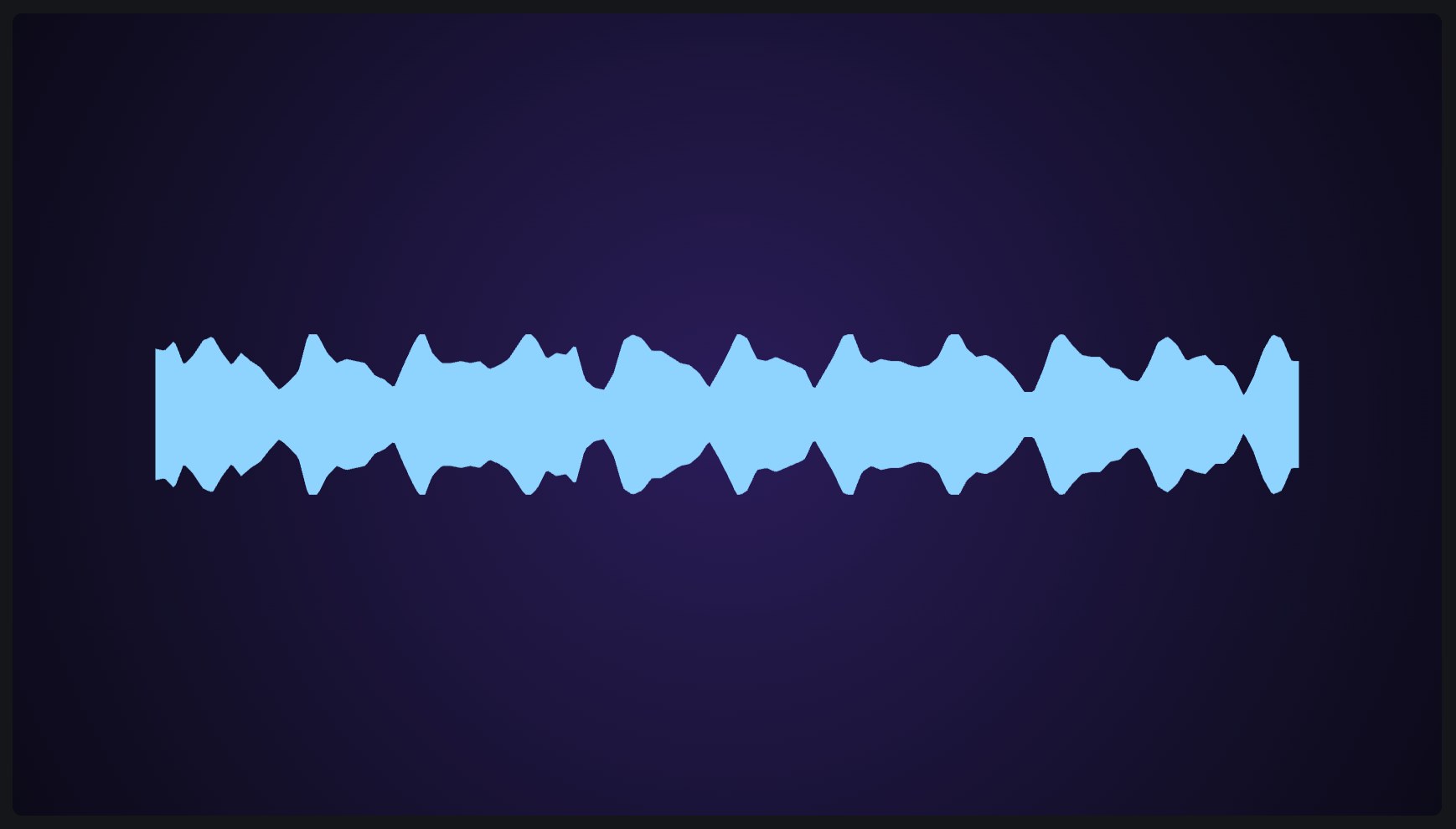
The shape of the sound as it goes by, as a line or as filled bars, straight or round a circle.
| Setting | Takes | Starts at |
|---|---|---|
| Style | line, filled, mirrored | mirrored |
| Time shown | 0.01 to 30 s | 4 s |
| Width | 0 to 100 % | 80 % |
| Height | 0 to 100 % | 20 % |
| Line width | 0.05 to 3 % | 0.3 % |
| Colour | a colour | #3ddc97 |
| Form | straight, circle | straight |
| Radius, as a circle | 0 to 50 % | 20 % |
Also: everything every layer has, and the layer styles. See settings every layer has.
Shape
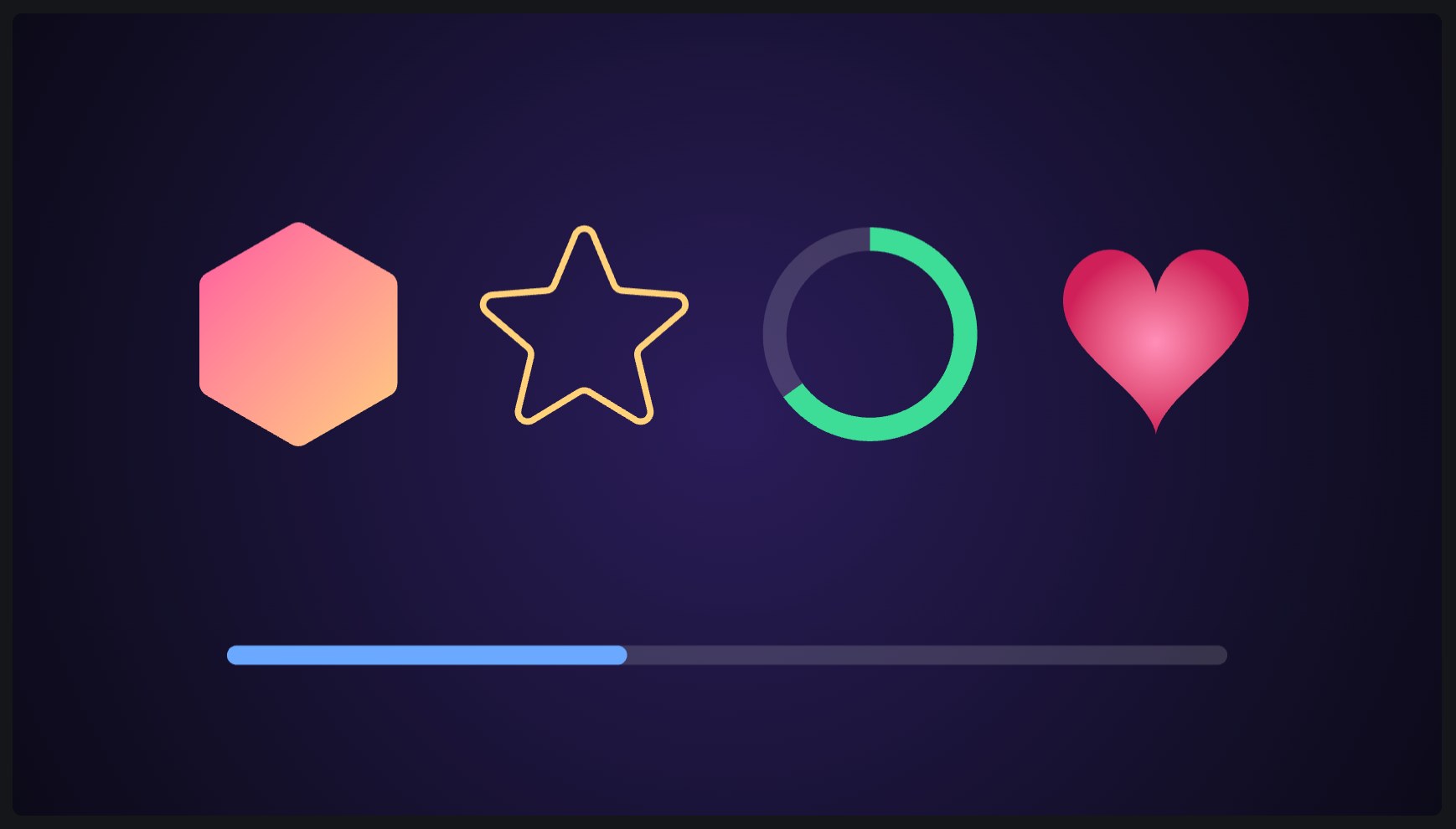
A rectangle, an ellipse, a polygon, a star or another shape, filled with a colour or a gradient and outlined. Only part of it can be drawn, across or round, which with progress makes a progress bar or a ring that fills.
| Setting | Takes | Starts at |
|---|---|---|
| Shape | rectangle, ellipse, ring, triangle, diamond, pentagon, hexagon, octagon, polygon, star, cross, arrow, heart | rectangle |
| Width | 0 to 100 % | 30 % |
| Height | 0 to 100 % | 6 % |
| Height the same as width | on or off | off |
| Corner rounding | 0 to 50 % | 0 % |
| Sides, or a star's points | 3 to 24 | 6 |
| A star's inner points | 0 to 100 % | 45 % |
| Thickness of a ring, cross or arrow | 1 to 100 % | 30 % |
| Fill | one colour, linear gradient, radial gradient | one colour |
| Stop 1 | a colour | #3ddc97 |
| Stop 1 at | 0 to 1 | 0 |
| Stop 2 | a colour | none |
| Stop 2 at | 0 to 1 | 0.25 |
| Stop 3 | a colour | none |
| Stop 3 at | 0 to 1 | 0.5 |
| Stop 4 | a colour | none |
| Stop 4 at | 0 to 1 | 0.75 |
| Stop 5 | a colour | #6aa9ff |
| Stop 5 at | 0 to 1 | 1 |
| Colours blend | even, round the colour wheel | even |
| Gradient angle | 0 to 360 ° | 90 ° |
| Outline | 0 to 5 % | 0 % |
| Outline colour | a colour | #ffffff |
| Outline style | solid, dashed, dotted | solid |
| Drawn, 0 to 1 | 0 to 1 | 1 |
| Drawn from | left, right, bottom, top, the middle, clockwise, anticlockwise, left, keeping its shape, bottom, keeping its shape, along the outline | left |
| Going round, starts at | 0 to 360 ° | 0 ° |
| Colour of the part not drawn | a colour | none |
Also: everything every layer has, and the layer styles. See settings every layer has.
Noise
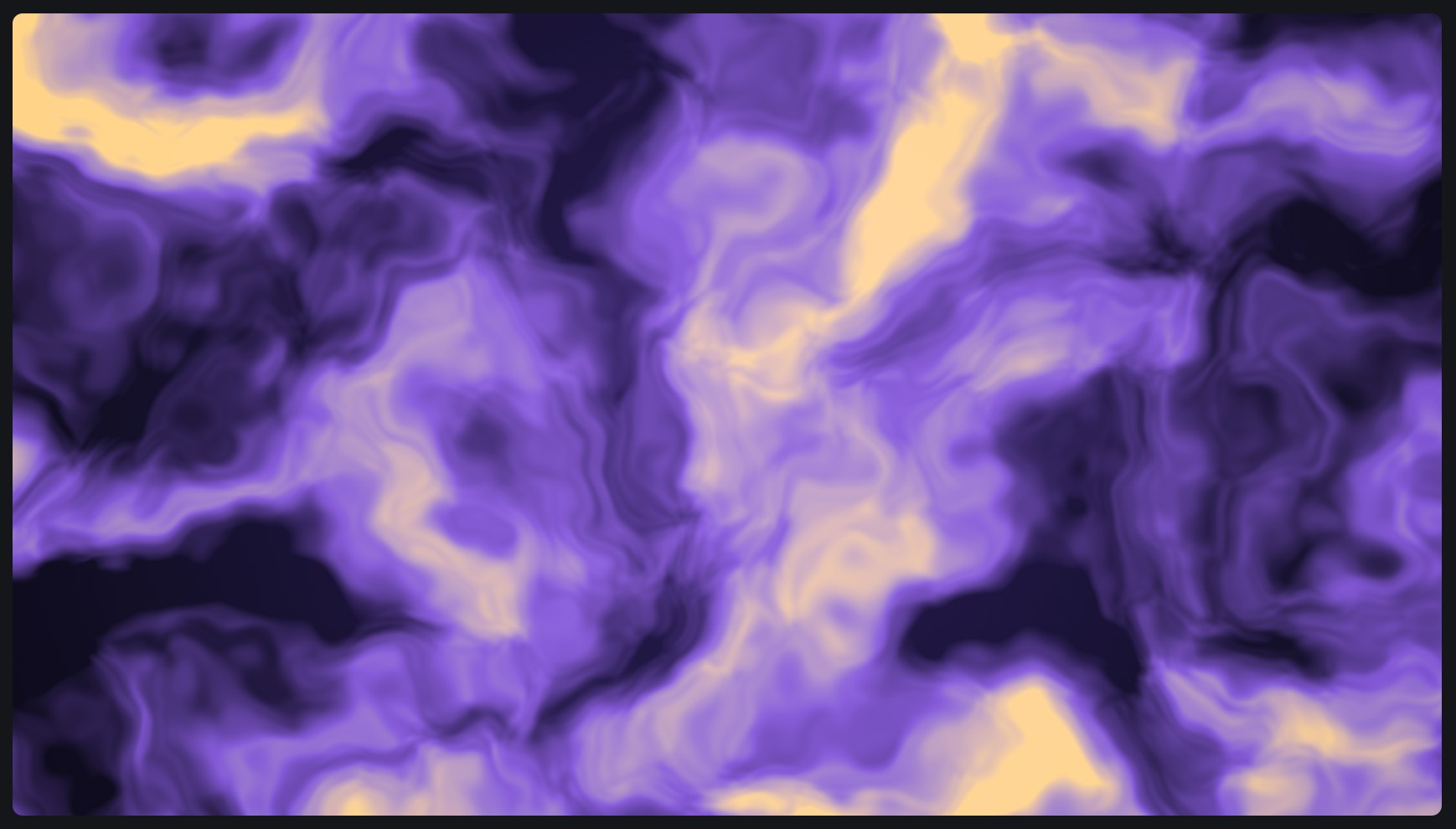
Patterns that evolve and drift: clouds, smoke, ridges, cells, cracks, marble and plasma, coloured by a gradient from their low to their high parts. A see-through stop lets what is beneath show, so white clouds can float over it.
| Setting | Takes | Starts at |
|---|---|---|
| Kind | clouds, turbulence, ridges, cells, cell edges, marble, plasma | clouds |
| Size | 1 to 200 % | 30 % |
| Detail | 1 to 8 | 5 |
| Roughness | 0 to 1 | 0.5 |
| Warp | 0 to 1 | 0 |
| Changes | 0 to 2 /s | 0.15 /s |
| Drift | 0 to 50 %/s | 0 %/s |
| Drift direction | 0 to 360 ° | 0 ° |
| Seed | 0 to 1000 | 0 |
| Coverage | 0 to 1 | 1 |
| Softness of the edges | 0 to 1 | 1 |
| Stop 1 | a colour | #ffffff00 |
| Stop 1 at | 0 to 1 | 0 |
| Stop 2 | a colour | none |
| Stop 2 at | 0 to 1 | 0.25 |
| Stop 3 | a colour | none |
| Stop 3 at | 0 to 1 | 0.5 |
| Stop 4 | a colour | none |
| Stop 4 at | 0 to 1 | 0.75 |
| Stop 5 | a colour | #ffffff |
| Stop 5 at | 0 to 1 | 1 |
| Colours blend | even, round the colour wheel | even |
Also: everything every layer has, and the layer styles. See settings every layer has.
Grid
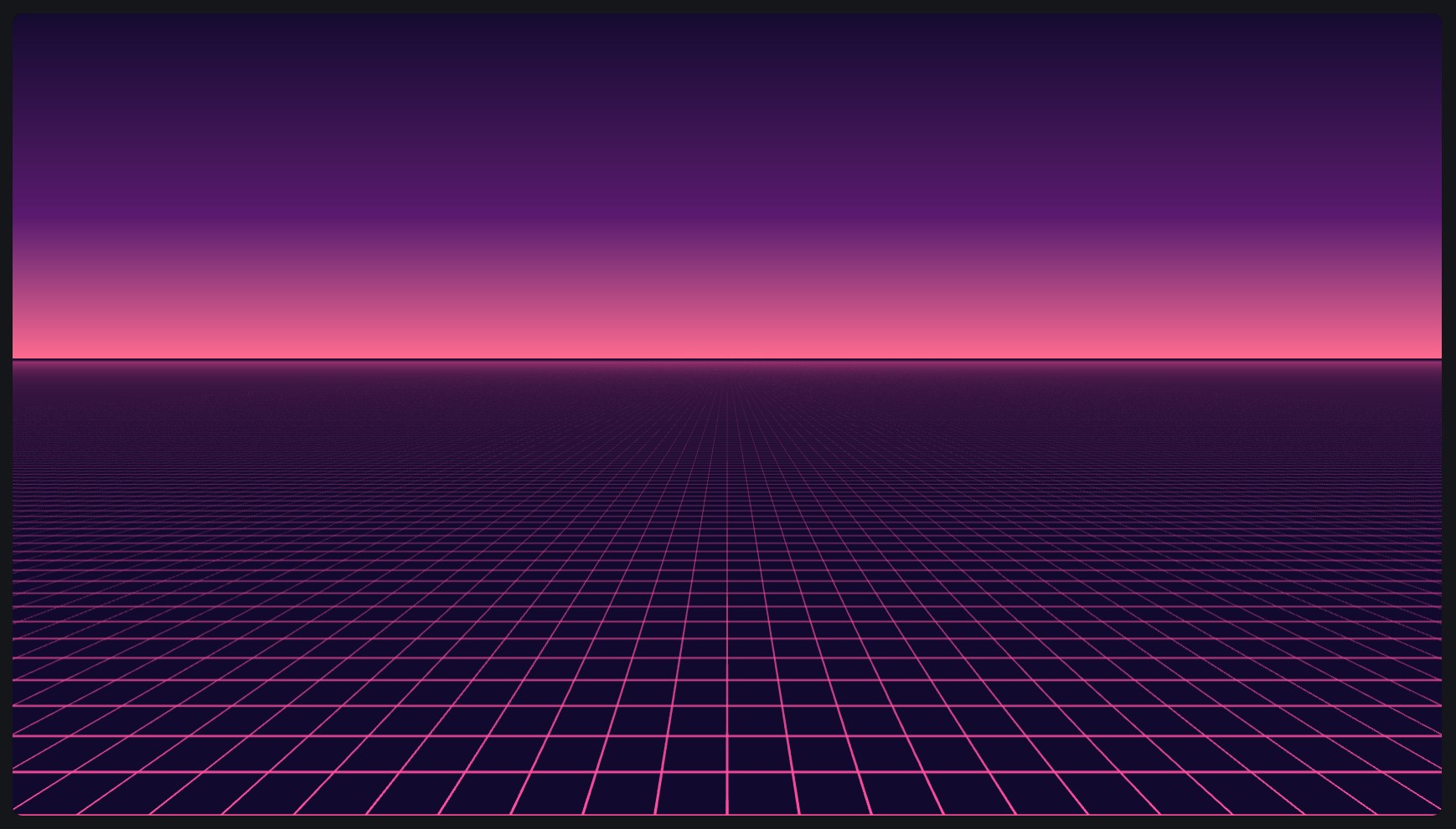
A pattern over the whole picture: lines, a checkerboard, a honeycomb, dots or stripes, or a floor of lines running to the horizon, as in a retro synthwave video. It can scroll.
| Setting | Takes | Starts at |
|---|---|---|
| Kind | lines, checkerboard, hex grid, hex cells, dots, stripes, floor | lines |
| Cell size | 0.5 to 50 % | 8 % |
| Line width, or gap between cells | 0 to 5 % | 0.2 % |
| Line colour | a colour | #ffffff |
| First colour | a colour | #ffffff |
| Second colour | a colour | none |
| Third colour, of hex cells | a colour | none |
| Corner rounding, of a checkerboard | 0 to 50 % | 0 % |
| Dot size | 0 to 1 | 0.4 |
| Scroll | -50 to 50 %/s | 0 %/s |
| Scroll direction | 0 to 360 ° | 0 ° |
| Perspective, of a floor | 0.3 to 6 | 1.5 |
| Fades into the distance, a floor | 0 to 1 | 0.7 |
Also: everything every layer has, and the layer styles. See settings every layer has.
Effects: layers that change what is beneath
Glow
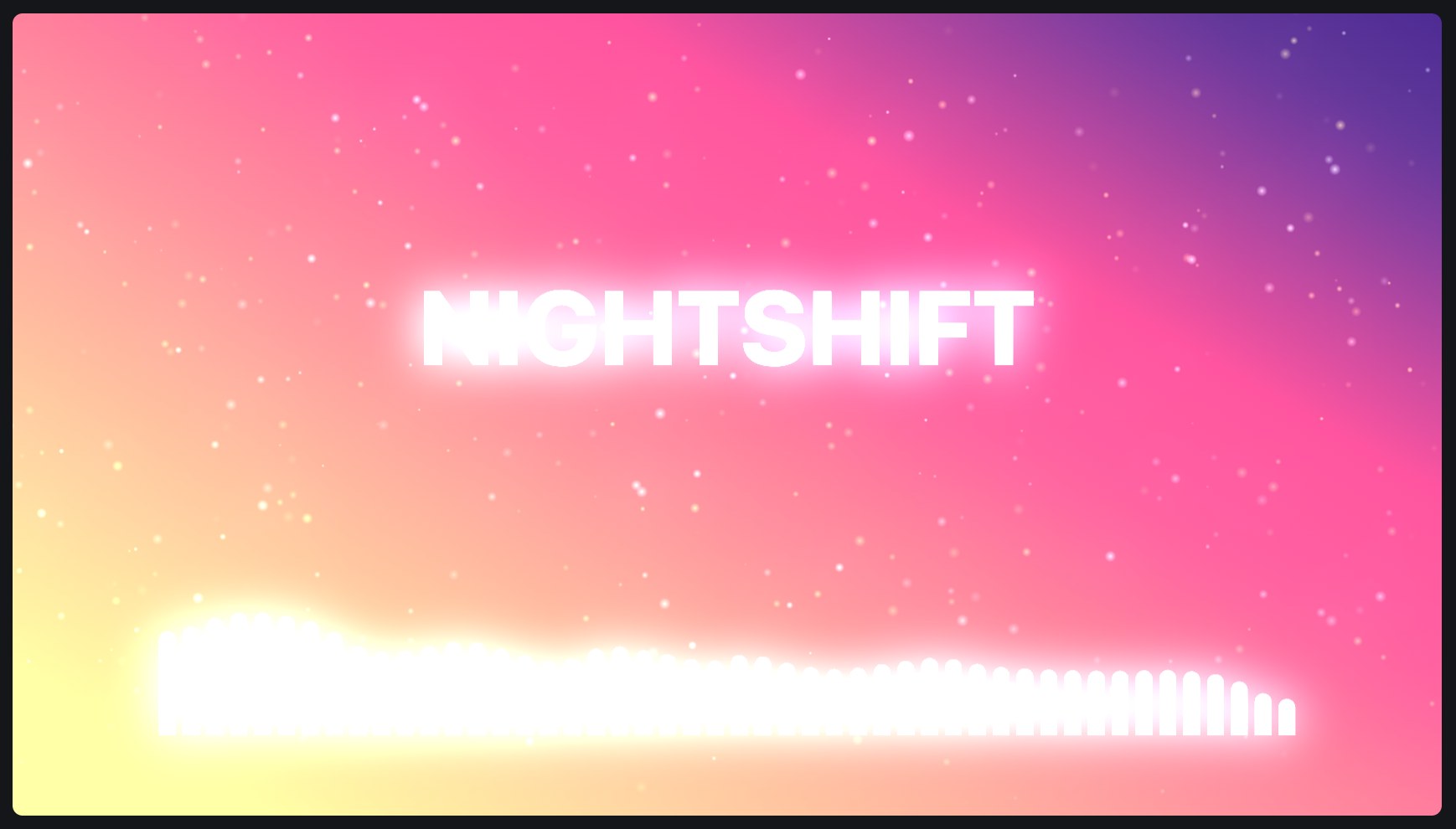
Makes the bright parts of the picture beneath shine, spreading their light around them.
| Setting | Takes | Starts at |
|---|---|---|
| Threshold | 0 to 1 | 0.6 |
| Strength | 0 to 3 × | 0.6 × |
| Radius | 0 to 20 % | 2 % |
| Tint | a colour | #ffffff |
Also: everything every layer has. See settings every layer has.
Colour split
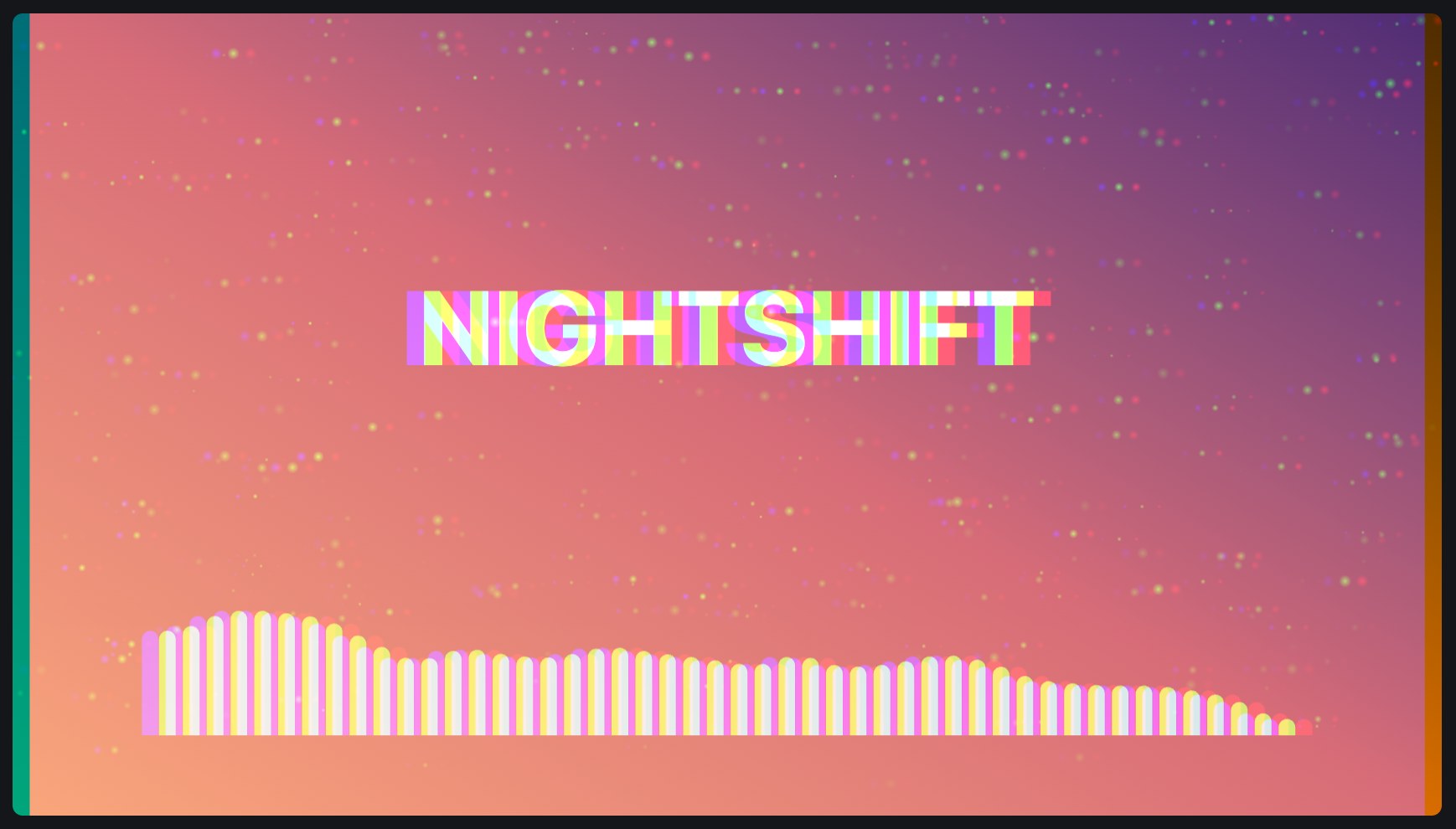
Pushes the red and the blue of the picture beneath apart, as a cheap lens does, in one direction or out from the middle.
| Setting | Takes | Starts at |
|---|---|---|
| Form | straight, from the centre | straight |
| Amount | 0 to 5 % | 0.4 % |
| Direction, when straight | 0 to 360 ° | 0 ° |
Also: everything every layer has. See settings every layer has.
Glitch
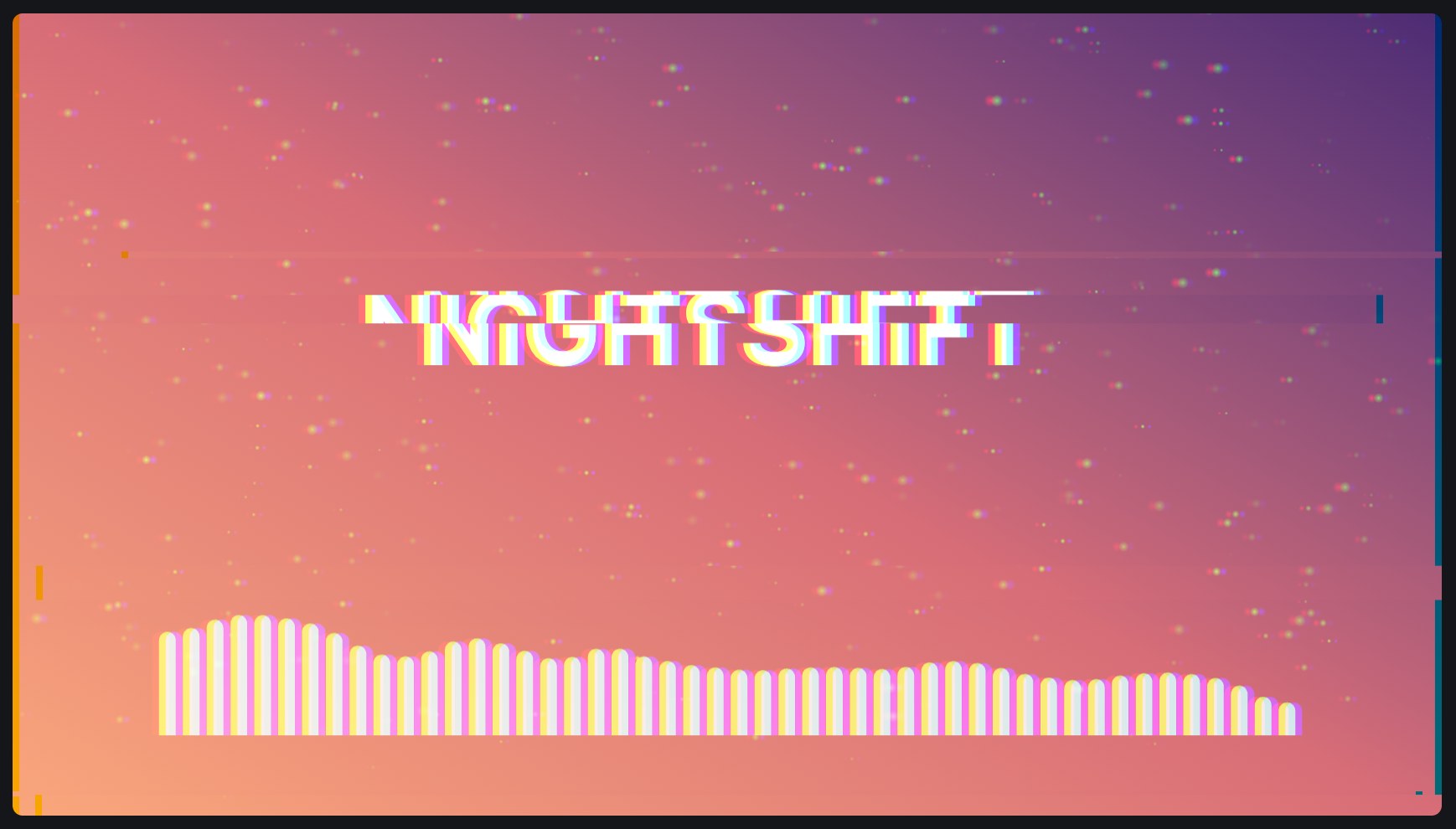
Tears the picture beneath into slices thrown sideways, with the colours split, as a damaged video does.
| Setting | Takes | Starts at |
|---|---|---|
| How often | 0 to 1 | 0.3 |
| Slices | 1 to 60 | 10 |
| How far they tear | 0 to 40 % | 6 % |
| Colour split | 0 to 5 % | 0.6 % |
| Changes a second | 0.5 to 30 | 8 |
Also: everything every layer has. See settings every layer has.
Brightness and contrast
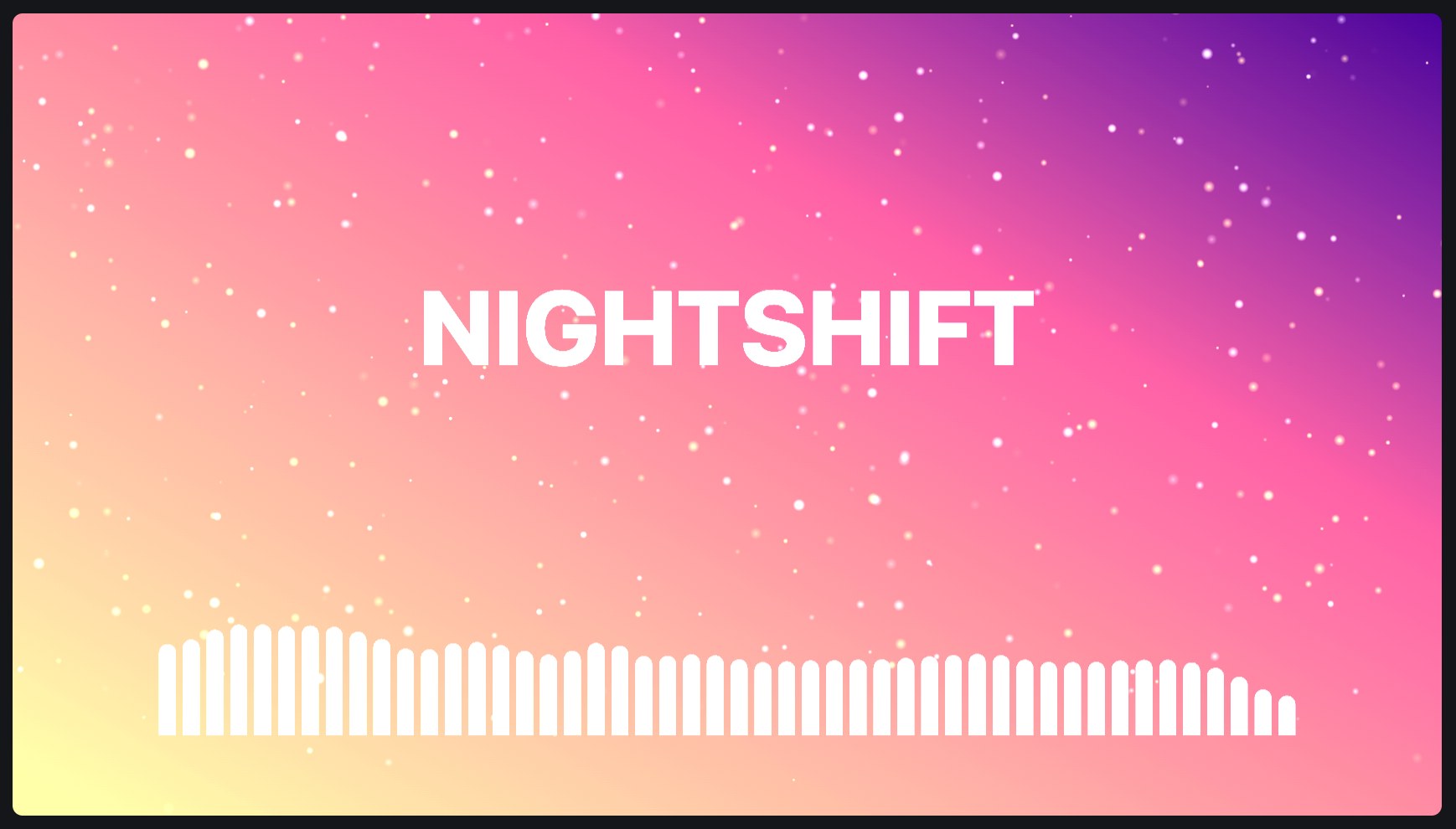
Makes the picture beneath brighter or darker, and its contrast stronger or weaker.
| Setting | Takes | Starts at |
|---|---|---|
| Brightness | 0 to 3 × | 1 × |
| Contrast | 0 to 3 × | 1 × |
Also: everything every layer has. See settings every layer has.
Hue and saturation
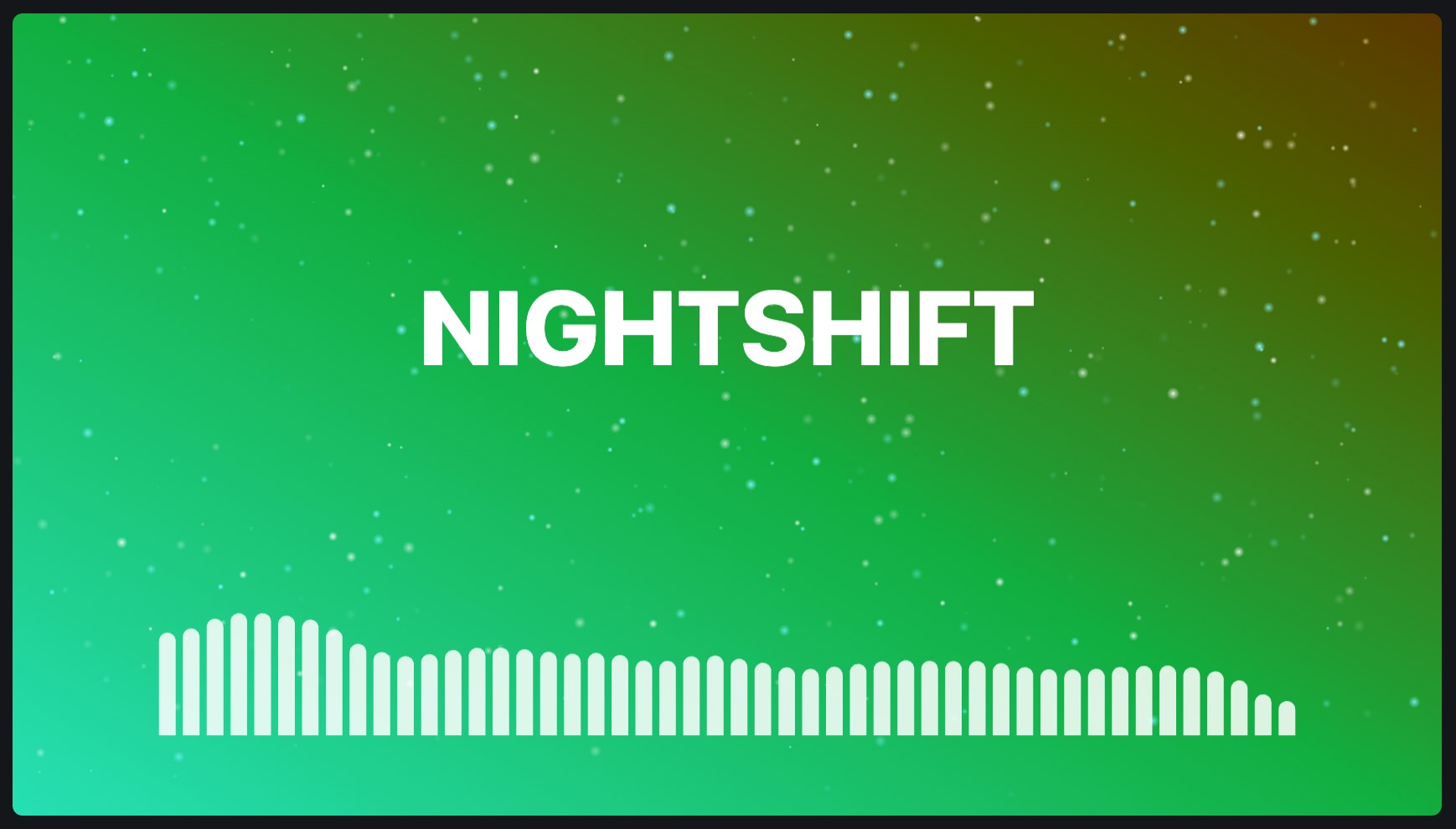
Turns the colours of the picture beneath round the colour wheel, and makes them richer, greyer, lighter or darker.
| Setting | Takes | Starts at |
|---|---|---|
| Hue | -180 to 180 ° | 0 ° |
| Saturation | 0 to 3 × | 1 × |
| Lightness | -1 to 1 | 0 |
Also: everything every layer has. See settings every layer has.
Displace
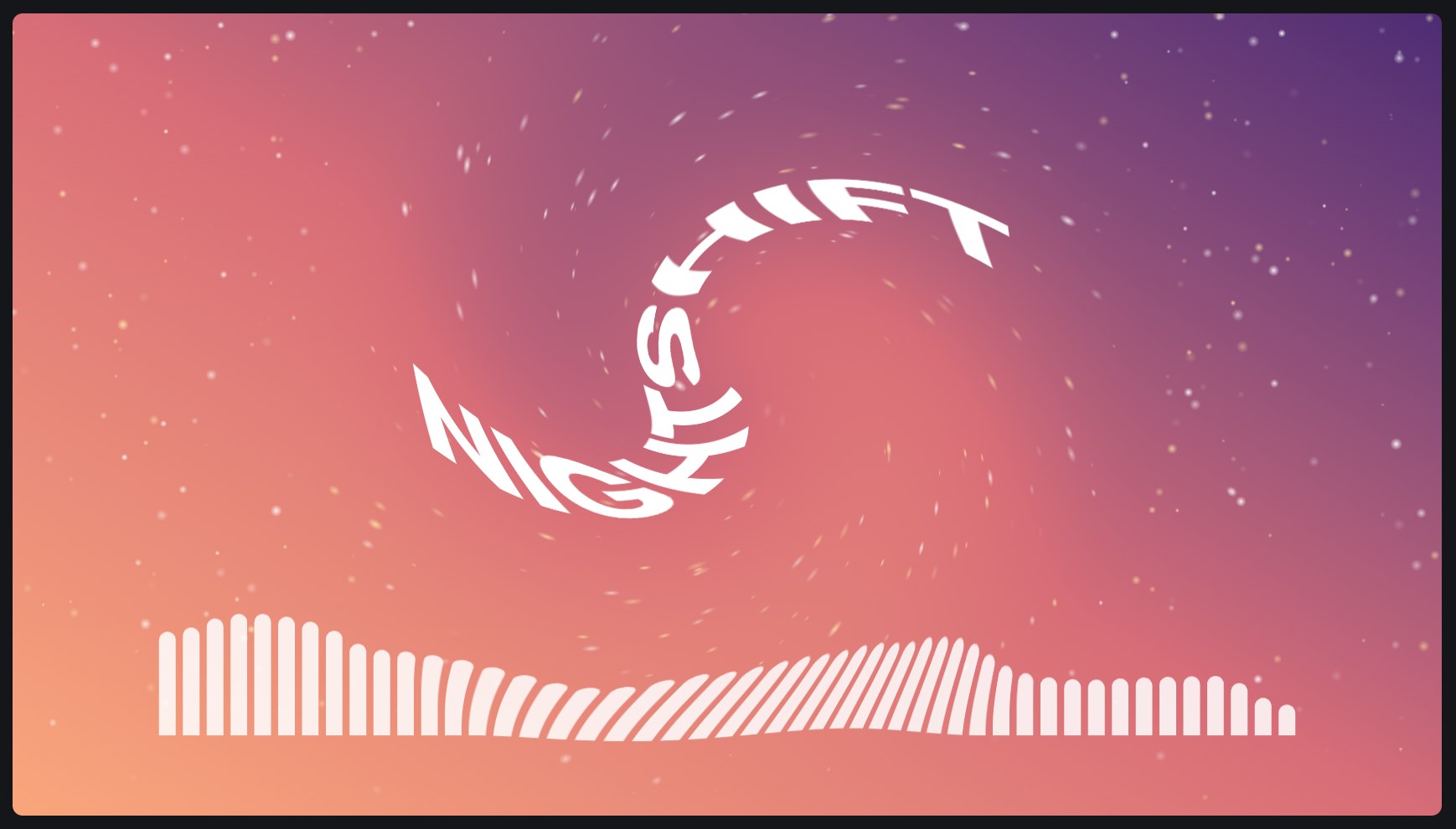
Moves the picture beneath about: wobbling with noise, waving like a flag, rippling out from a point, swirled round it, or bulged and pinched as through a lens. Inside a group, only the group's layers.
| Setting | Takes | Starts at |
|---|---|---|
| Mode | noise, waves, ripples, swirl, bulge | noise |
| Amount | -10 to 10 % | 1 % |
| Twist, of a swirl | -720 to 720 ° | 90 ° |
| Size of the waves or the noise | 1 to 200 % | 20 % |
| Radius, of ripples, a swirl or a bulge | 1 to 150 % | 40 % |
| Direction of the waves | 0 to 360 ° | 0 ° |
| Speed | -5 to 5 /s | 0.2 /s |
| Kind of noise | clouds, turbulence, ridges, cells, cell edges, marble, plasma | clouds |
| Detail of the noise | 1 to 8 | 3 |
| Seed | 0 to 1000 | 0 |
| Colour split | 0 to 1 | 0 |
| Past the edges | none, repeat, mirror, extend | mirror |
| Hold the edges | on or off | off |
| Held over, from the edges | 0 to 50 % | 10 % |
Also: visible, opacity, blend, across, down, shown from, shown until, before the end, fade in, fade out. See settings every layer has.
Mosaic
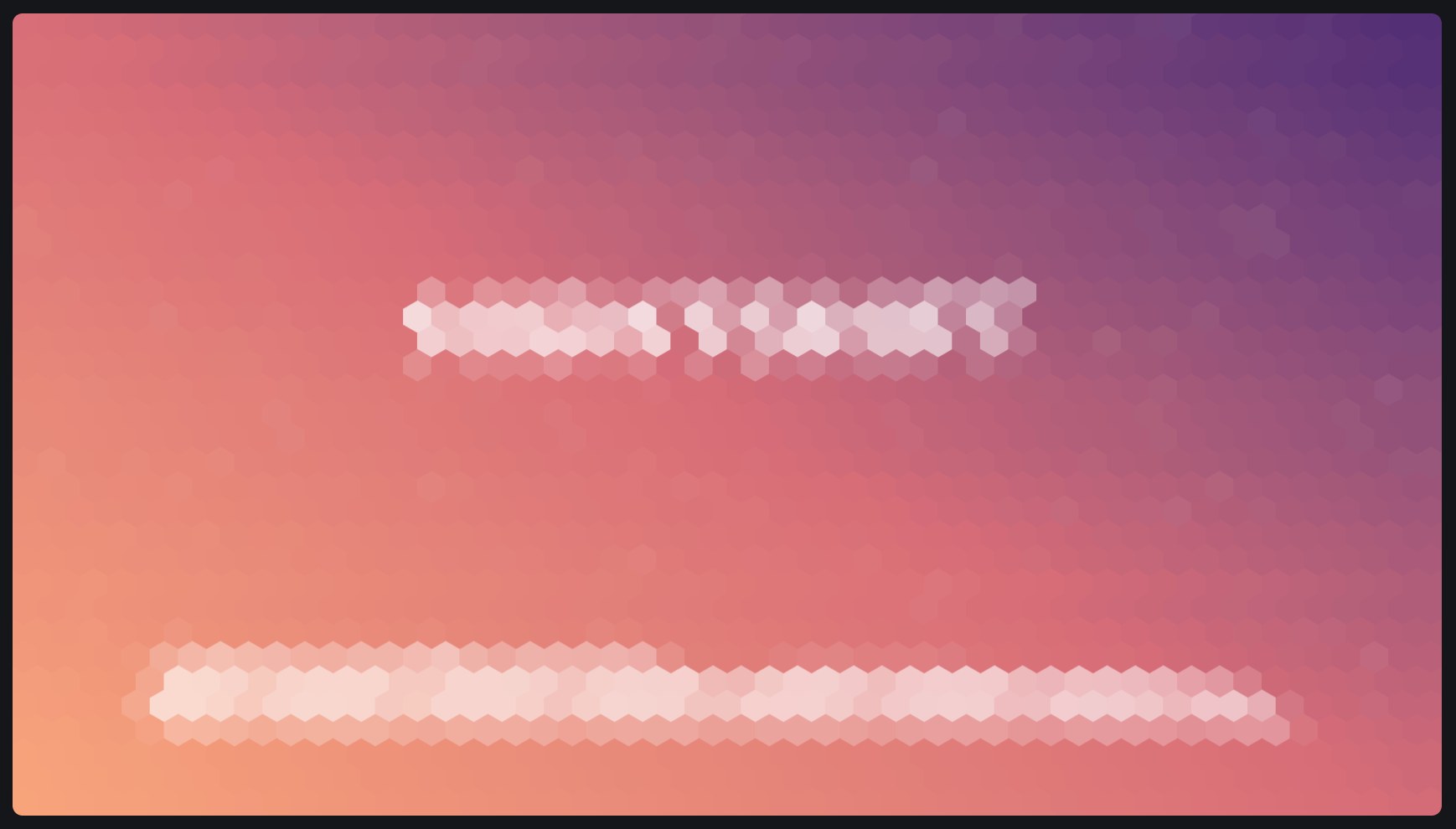
Breaks the picture beneath into cells, each of the colour under it: squares (pixels), hexagons, circles, halftone dots that grow with the brightness, or triangles. With fewer colours, it looks like an old computer's.
| Setting | Takes | Starts at |
|---|---|---|
| Cells | squares, hexagons, circles, halftone, triangles | squares |
| Cell size | 0.5 to 30 % | 3 % |
| Gap between cells | 0 to 0.9 | 0 |
| Corner rounding, of squares | 0 to 50 % | 0 % |
| Between the cells | a colour | #000000 |
| Colours | as they are, fewer colours | as they are |
| Levels, of fewer colours | 2 to 16 | 4 |
Also: visible, opacity, blend, across, down, rotation, shown from, shown until, before the end, fade in, fade out. See settings every layer has.
Gradient map
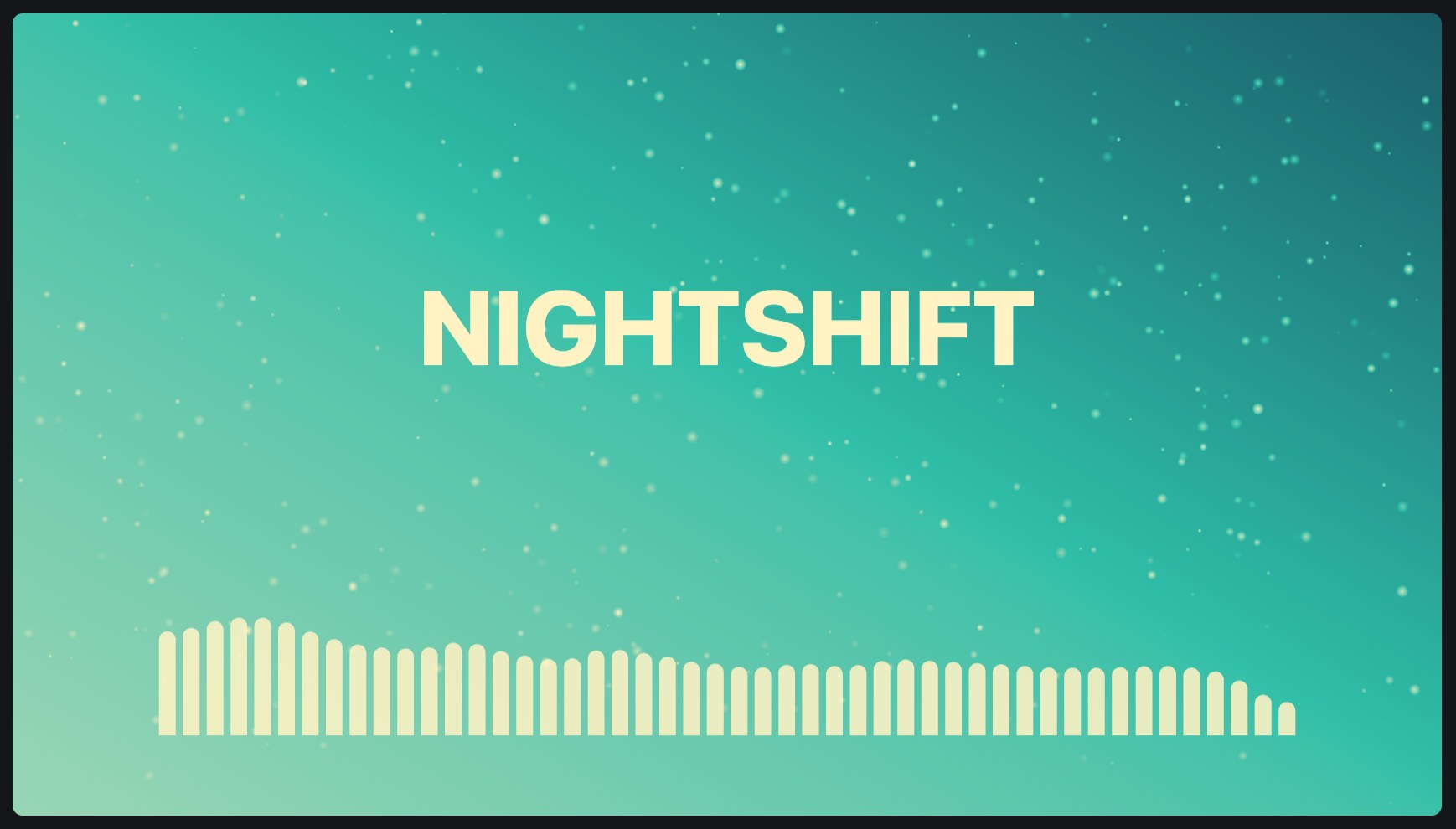
Recolours the picture beneath by its brightness: dark parts take the gradient's first colours, bright parts its last. Two colours make a duotone; more, any palette. The colours can slide along it with the music.
| Setting | Takes | Starts at |
|---|---|---|
| Shift | 0 to 1 | 0 |
| Hue shift | -180 to 180 ° | 0 ° |
| Darkest from brightness | 0 to 1 | 0 |
| Brightest from brightness | 0 to 1 | 1 |
| Stop 1 | a colour | #140a33 |
| Stop 1 at | 0 to 1 | 0 |
| Stop 2 | a colour | none |
| Stop 2 at | 0 to 1 | 0.25 |
| Stop 3 | a colour | #ff4fa0 |
| Stop 3 at | 0 to 1 | 0.5 |
| Stop 4 | a colour | none |
| Stop 4 at | 0 to 1 | 0.75 |
| Stop 5 | a colour | #ffe8a8 |
| Stop 5 at | 0 to 1 | 1 |
| Colours blend | even, round the colour wheel | even |
Also: visible, opacity, blend, shown from, shown until, before the end, fade in, fade out. See settings every layer has.
White balance
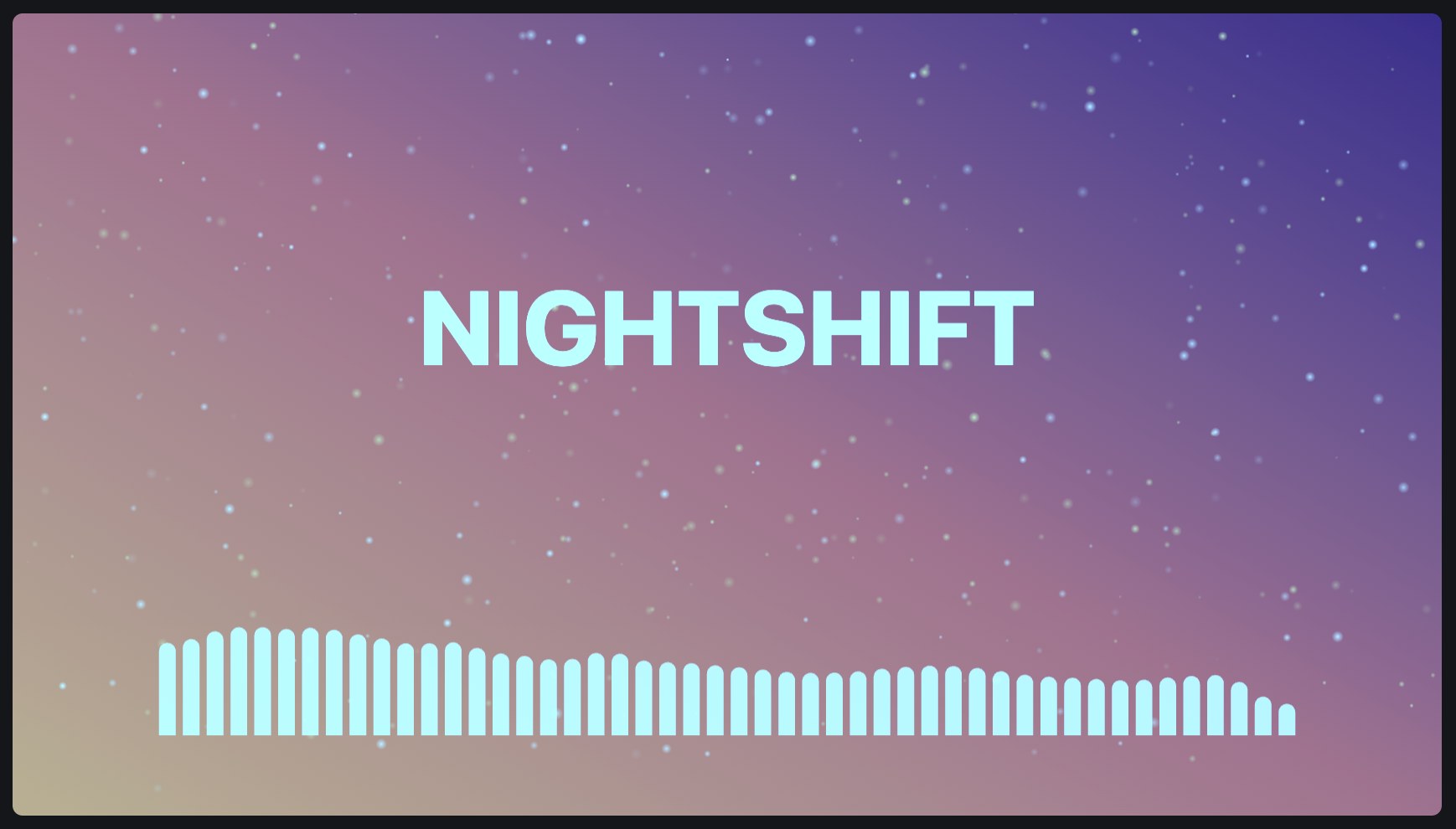
Warms or cools the colours of the picture beneath, and moves them towards green or magenta: to correct a photo or video taken under the wrong light, or to give it a mood. In a group with a picture, it changes only that picture.
| Setting | Takes | Starts at |
|---|---|---|
| Temperature: cooler to warmer | -1 to 1 | 0 |
| Tint: green to magenta | -1 to 1 | 0 |
Also: visible, opacity, blend, shown from, shown until, before the end, fade in, fade out. See settings every layer has.
Kaleidoscope
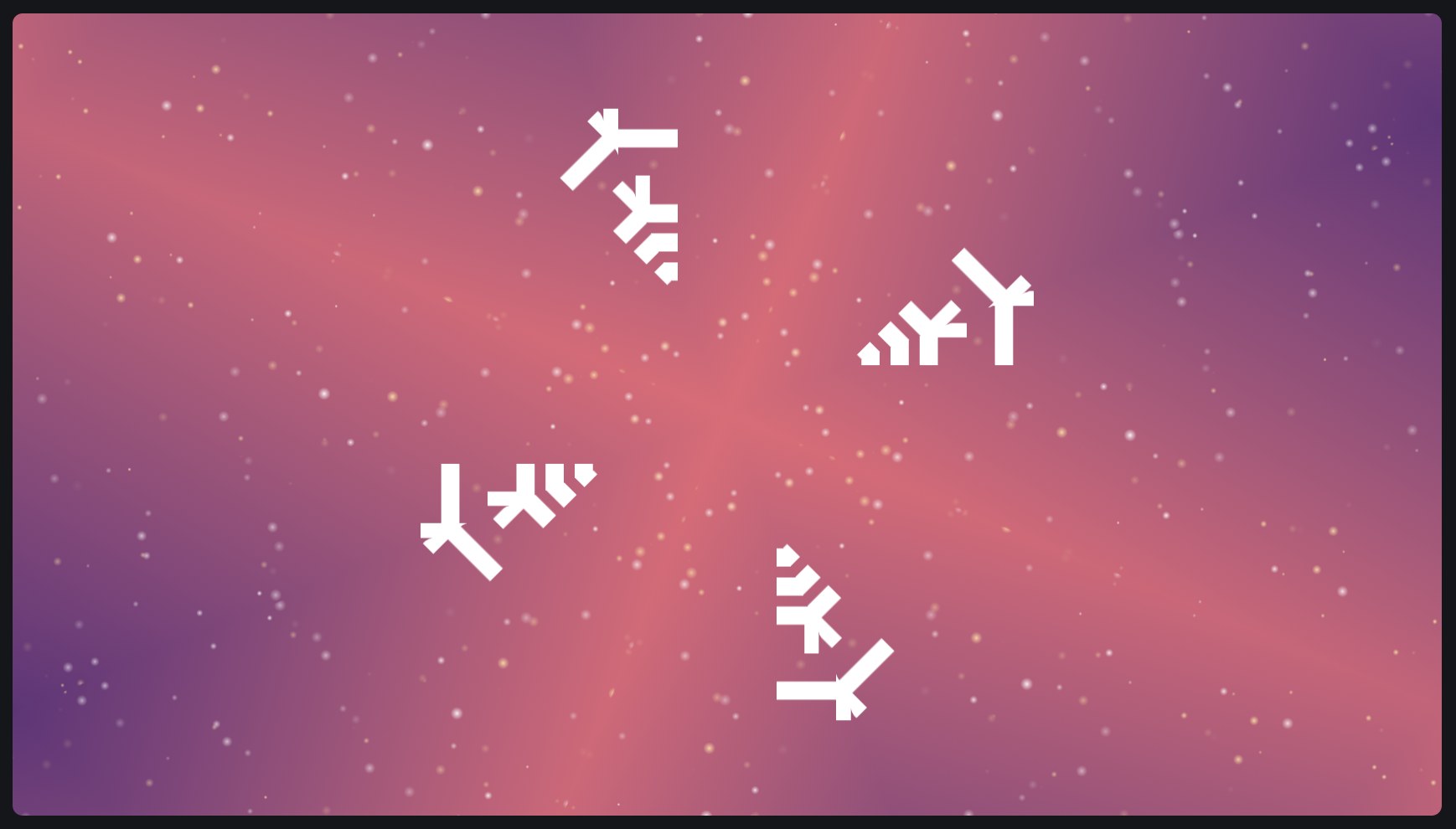
Repeats a slice of the picture beneath all the way round a point, mirrored or not, as a kaleidoscope does.
| Setting | Takes | Starts at |
|---|---|---|
| Segments | 2 to 24 | 6 |
| Taken from | 0 to 360 ° | 0 ° |
| Mirrored | on or off | on |
Also: everything every layer has. See settings every layer has.
Transform
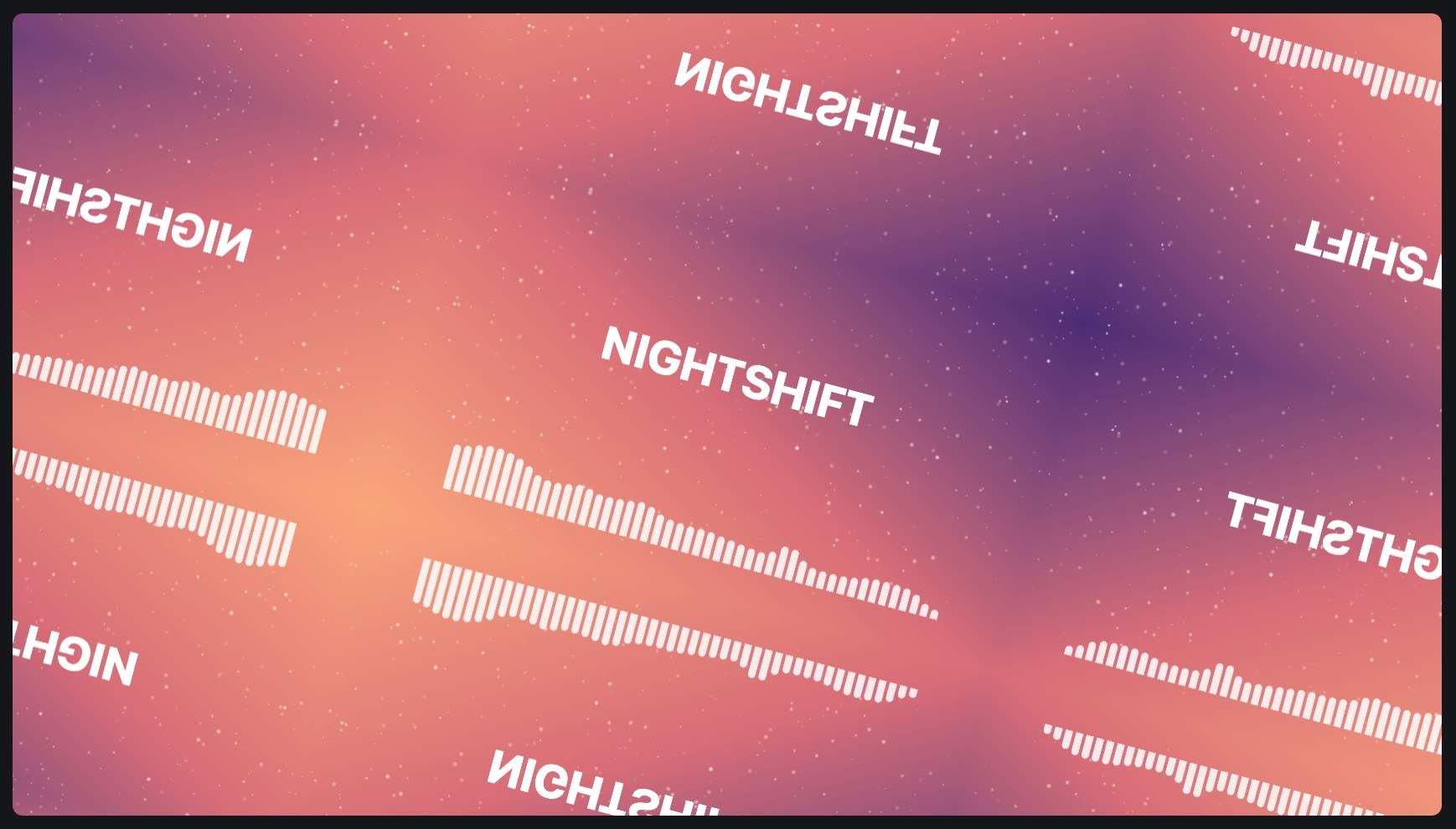
Moves, turns, sizes and flips everything beneath it as one. Past the picture's edges it shows nothing, the picture repeated, mirrored, or its edges drawn out.
| Setting | Takes | Starts at |
|---|---|---|
| Past the edges | none, repeat, mirror, extend | none |
| Flip across | on or off | off |
| Flip down | on or off | off |
Also: visible, opacity, blend, across, down, scale, rotation, shown from, shown until, before the end, fade in, fade out. See settings every layer has.
Trails
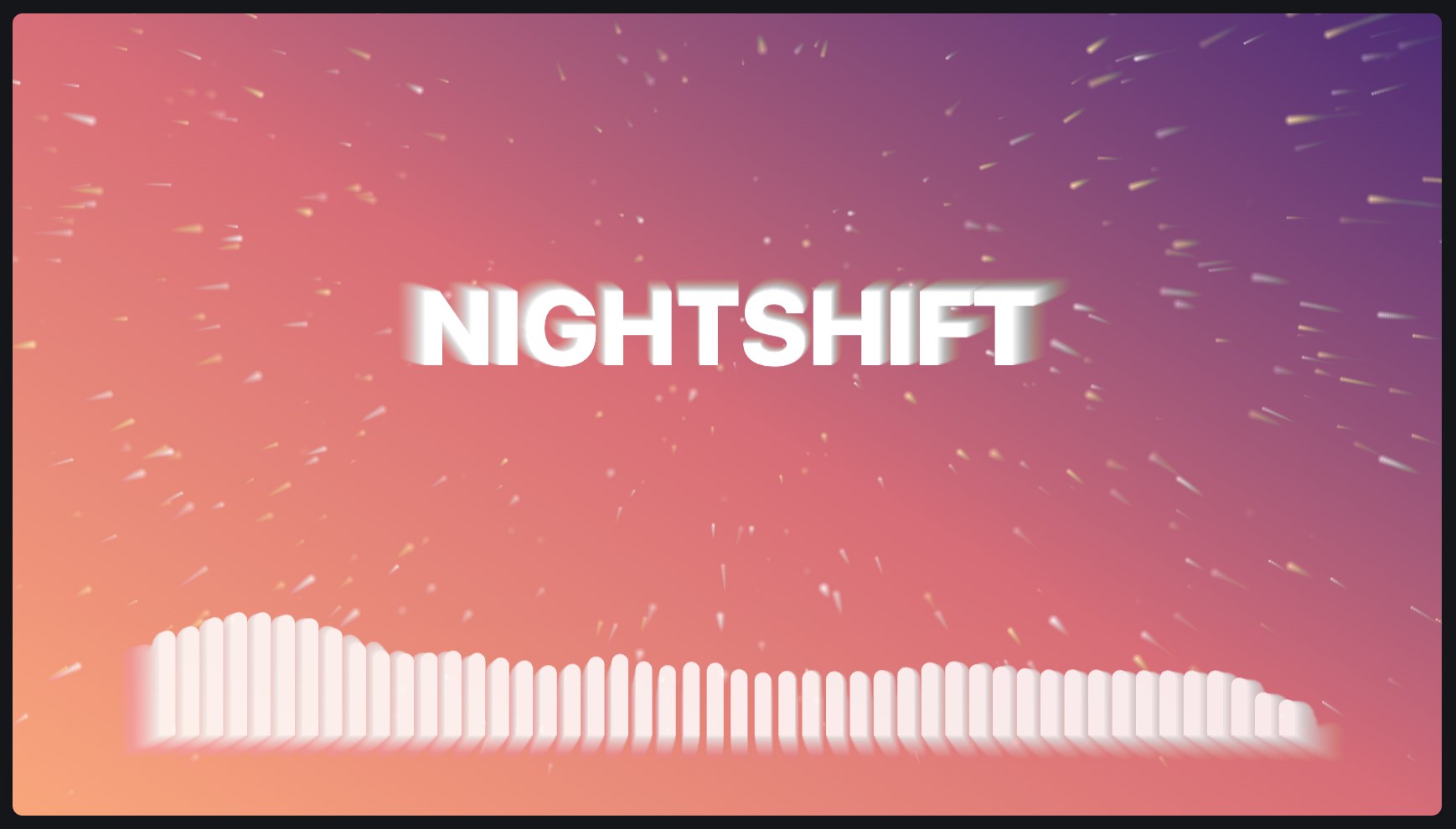
Leaves what moves beneath it behind as it goes, fading: as an echo, or only its bright or dark parts. The trail can zoom and turn as it fades.
| Setting | Takes | Starts at |
|---|---|---|
| Fades over | 0.05 to 10 s | 1 s |
| Leaves behind | echo, bright parts, dark parts | echo |
| Zoom | -100 to 100 %/s | 0 %/s |
| Turn | -180 to 180 °/s | 0 °/s |
Also: visible, opacity, blend, across, down, shown from, shown until, before the end, fade in, fade out. See settings every layer has.
Vignette
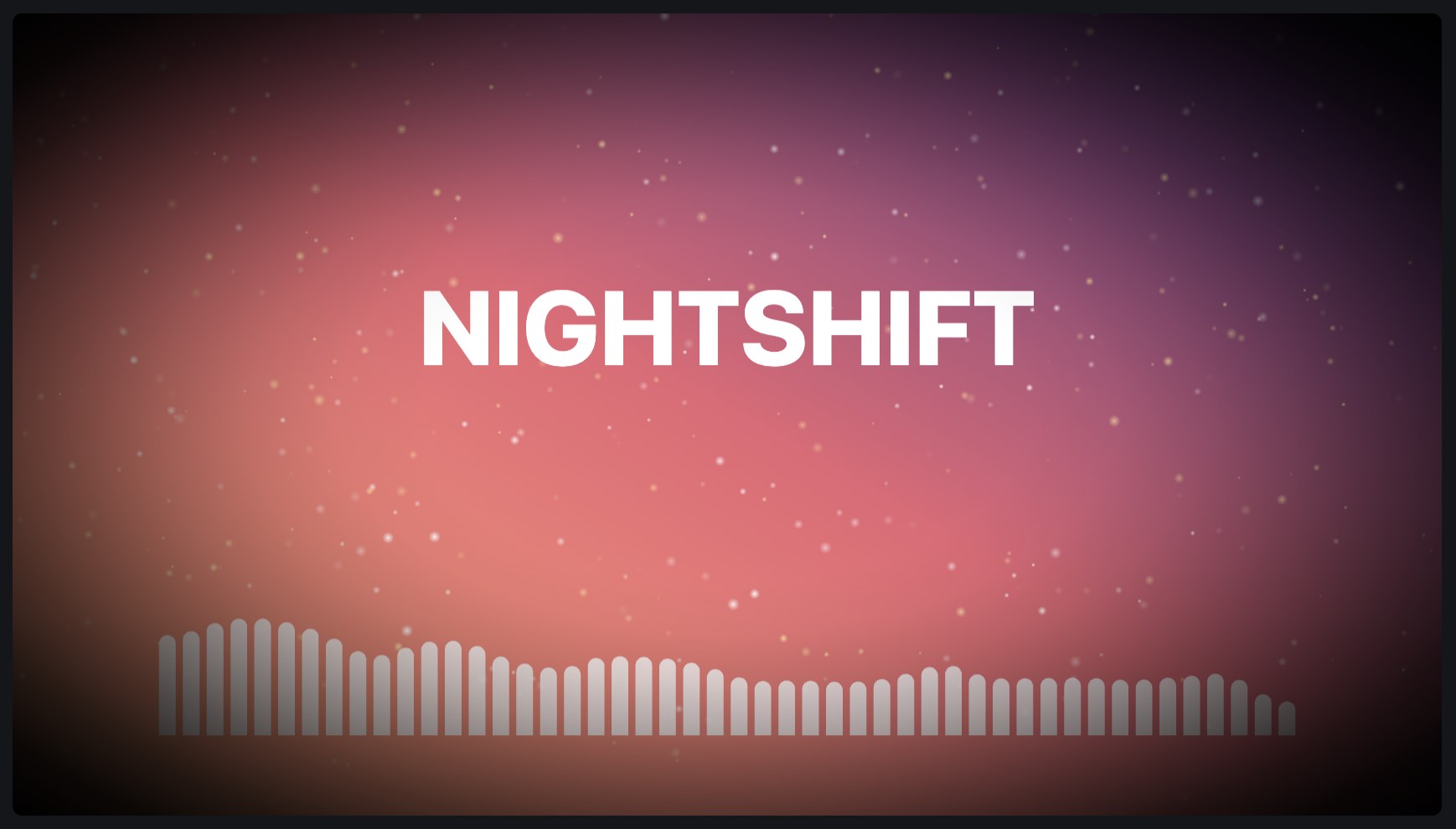
Darkens the edges of the picture towards a colour, leaving the middle clear, round a point you choose.
| Setting | Takes | Starts at |
|---|---|---|
| Colour | a colour | #000000 |
| Clear middle | 0 to 100 % | 50 % |
| Softness | 0 to 1 | 1 |
| Form | fits the picture, round | fits the picture |
Also: visible, opacity, blend, across, down, shown from, shown until, before the end, fade in, fade out. See settings every layer has.
Blur
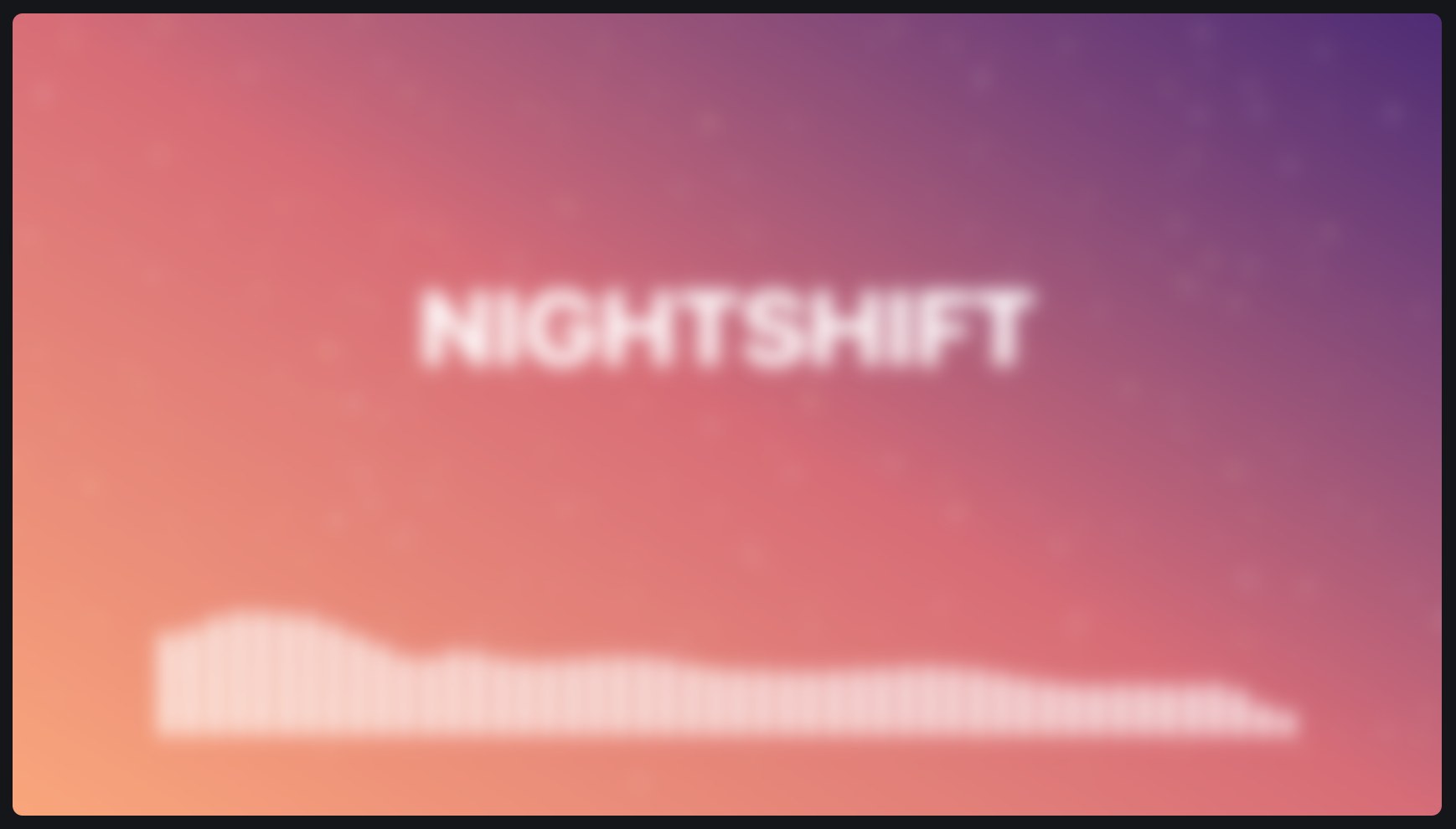
Softens the picture beneath, evenly out to its edges.
| Setting | Takes | Starts at |
|---|---|---|
| Radius | 0 to 10 % | 0.5 % |
Also: everything every layer has. See settings every layer has.
LUT
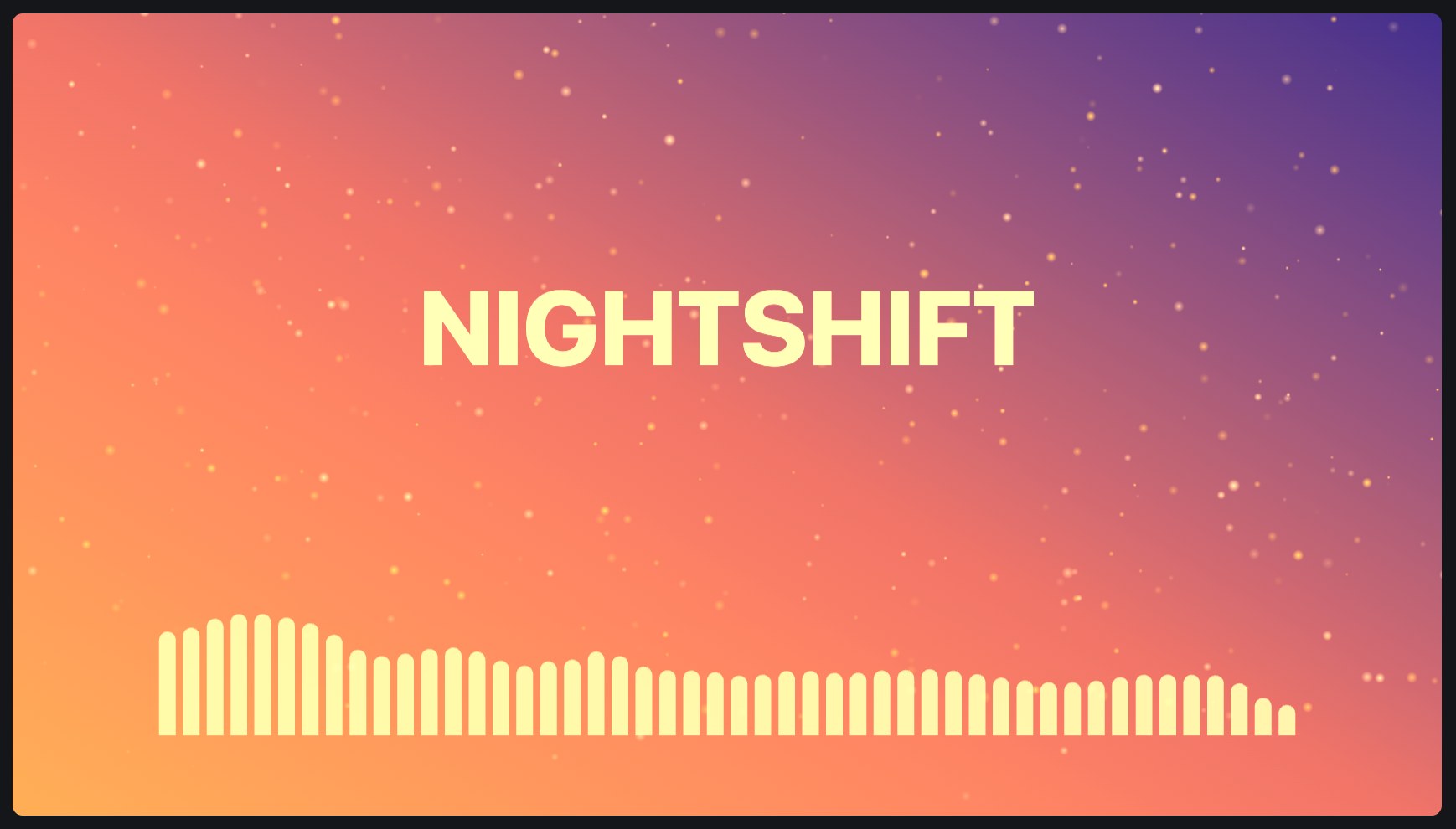
Gives the picture beneath a look from a colour lookup table: one of the film and other looks that come with the app, or a .cube file as made in Resolve, Premiere and the like.
| Setting | Takes | Starts at |
|---|---|---|
| LUT | a .cube LUT | none |
Also: visible, opacity, blend, shown from, shown until, before the end, fade in, fade out. See settings every layer has.
Groups
Group
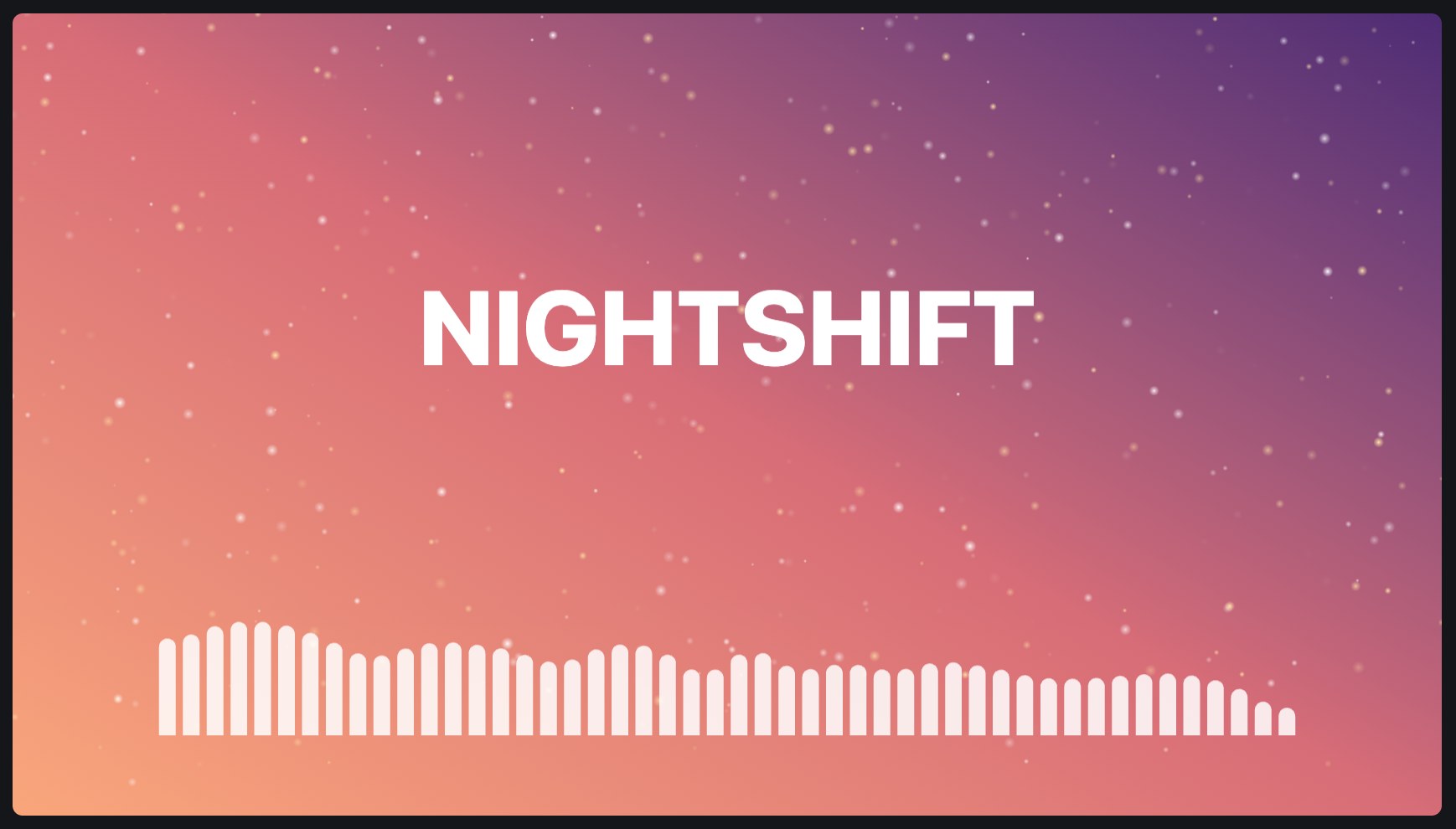
Holds layers together, to show, fade, blend, move, turn and size them as one. An effect inside a group changes only the group's own layers.
No settings of its own.
Also: visible, opacity, blend, across, down, scale, rotation, shown from, shown until, before the end, fade in, fade out, and the layer styles. See settings every layer has.