
Layer settings
Besides the settings of its kind, every layer has the ones below. Not every kind uses all of them: an effect that changes the whole picture has no place or size.
Place, size and timing
Positions are in percent of the picture's width and height, so a template fits any shape. Sizes are in percent of the picture's short side.
Amounts are not percentages but go from 0 to 1, as the music values do: an opacity of 1 is fully seen, 0.5 half. Settings that make something stronger or weaker, such as brightness or a glow's strength, are 1 for unchanged, 2 for twice as much. So a music value can be put straight into one: an opacity of level follows the loudness.
| Setting | Takes | Starts at |
|---|---|---|
| Visible | on or off | on |
| Opacity | 0 to 1 | 1 |
| Blend | normal, add, screen, lighten, colour dodge, multiply, darken, colour burn, linear burn, overlay, soft light, hard light, difference, exclusion, hue, saturation, colour, luminosity | normal |
| Across | 0 to 100 % | 50 % |
| Down | 0 to 100 % | 50 % |
| Anchor | centre, top, bottom, left, right, top left, top right, bottom left, bottom right | centre |
| Scale | 0 to 400 % | 100 % |
| Rotation | -180 to 180 ° | 0 ° |
| Shown from | 0 to 36000 s | 0 s |
| Shown until, before the end | 0 to 36000 s | 0 s |
| Fade in | 0 to 30 s | 0 s |
| Fade out | 0 to 30 s | 0 s |
- Anchor says which part of the layer sits at its position: its centre, an edge or a corner.
- Shown from and Shown until, before the end are in seconds from the start and from the end of the mix: a title can show for the first minute only. Fade in and Fade out soften those edges.
The settings in Placement can also be set on the picture, by dragging the layer's outline and corners.
Layer styles
Any layer that draws, and any group, can have the styles of an image editor: a drop shadow, a stroke, an outer glow, an inner shadow and an inner glow. Each has its own section in the layer's settings, with a switch to turn it on; a dot beside the heading shows it is on.
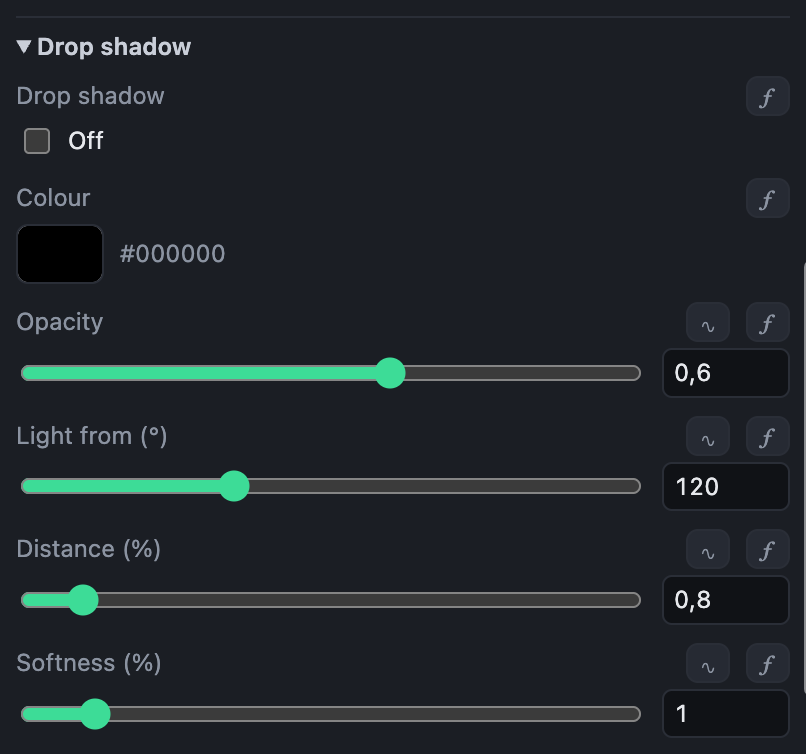
The styles are made from the shape of what the layer draws. A drop shadow, an outer glow and a stroke go beneath it; an inner shadow and an inner glow go over it, inside its shape.
| Setting | Takes | Starts at |
|---|---|---|
| Drop shadow | on or off | off |
| Colour | a colour | #000000 |
| Opacity | 0 to 1 | 0.6 |
| Light from | 0 to 360 ° | 120 ° |
| Distance | 0 to 10 % | 0.8 % |
| Softness | 0 to 10 % | 1 % |
| Stroke | on or off | off |
| Colour | a colour | #ffffff |
| Opacity | 0 to 1 | 1 |
| Width | 0 to 5 % | 0.3 % |
| Outer glow | on or off | off |
| Colour | a colour | #fff2b0 |
| Opacity | 0 to 1 | 0.75 |
| Size | 0 to 10 % | 2 % |
| Spread | 0 to 1 | 0 |
| Inner shadow | on or off | off |
| Colour | a colour | #000000 |
| Opacity | 0 to 1 | 0.6 |
| Light from | 0 to 360 ° | 120 ° |
| Distance | 0 to 10 % | 0.5 % |
| Softness | 0 to 10 % | 1 % |
| Inner glow | on or off | off |
| Colour | a colour | #fff2b0 |
| Opacity | 0 to 1 | 0.75 |
| Size | 0 to 10 % | 2 % |
| Choke | 0 to 1 | 0 |
- Light from is where the light comes from: the shadow falls the other way.
- Spread and Choke make part of a glow solid before it fades.
Like any setting, a style can move with the music: a glow that pulses with the bass, say.
Masks
Any layer that draws, and any group, can be used as a mask. Set Use as a mask in its Mask section: the layer is then not drawn, but decides where the layers above it in its group show. To limit what it masks, put it and those layers in a group. In the list of layers, a mask has a mark, and the layers it shows through have a bracket beside them.
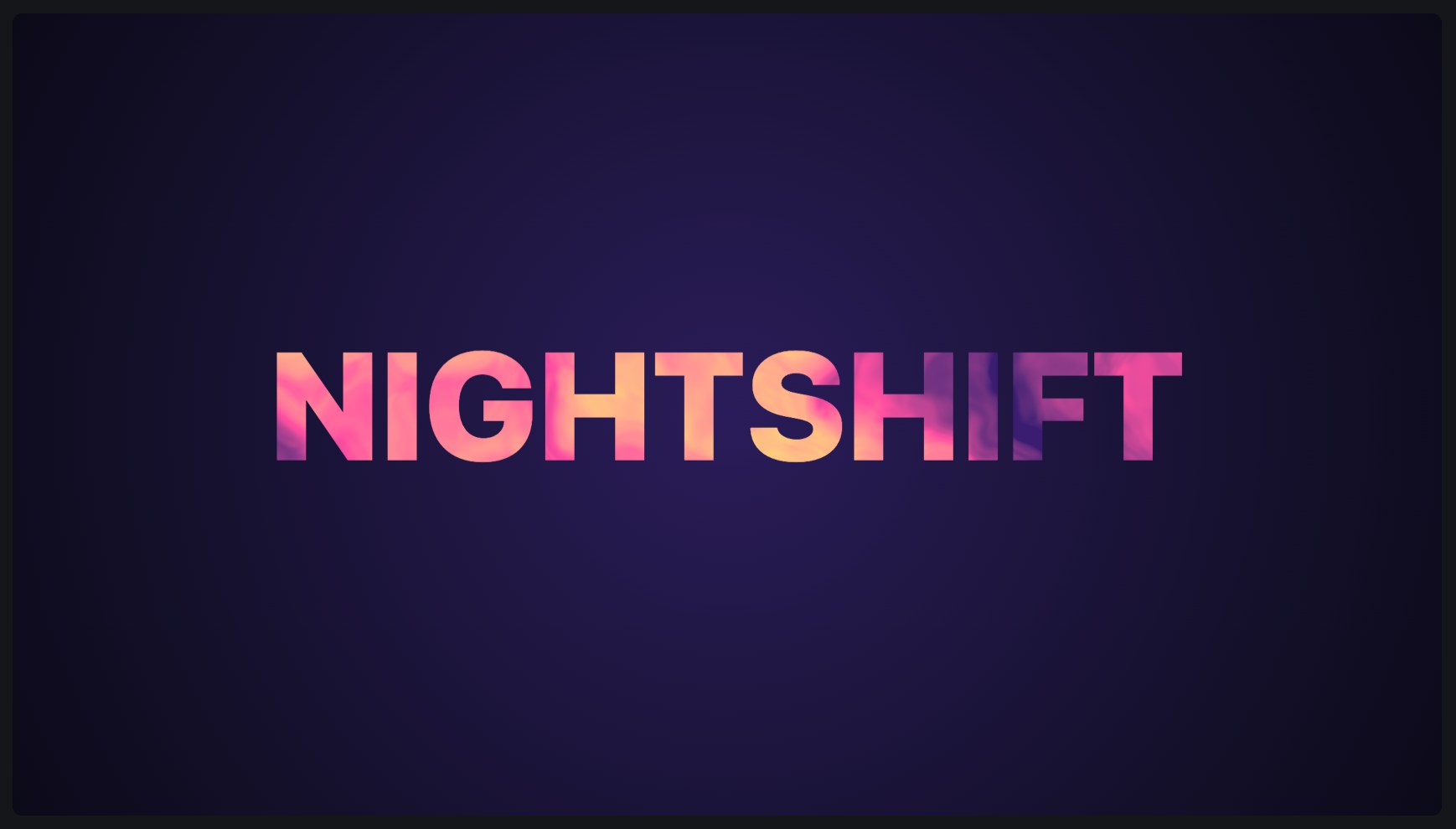
- By its shape: what the layer covers shows, the rest is hidden. A shape makes a mask of any outline, which can move and follow the music like the shape itself; text shows a video or a gradient through its letters.
- By its brightness: white shows, black hides, grey shows partly. A gradient makes a soft wipe; noise, a dissolve through clouds.
- An effect above a mask changes only what the mask shows: a blur or a glitch in one part of the picture.
- The mask's opacity and fades say how much it shows. Hidden (its eye closed), it masks nothing.
| Setting | Takes | Starts at |
|---|---|---|
| Use as a mask | off, by its shape, by its brightness | off |
| Invert | on or off | off |
| Expand, or shrink below 0 | -10 to 10 % | 0 % |
| Feather | 0 to 10 % | 0 % |